

Workspaces
Agents, keys, budgets and audit records each belong to exactly one workspace and never cross into another.
Your organization is your company, identified by your sign-in domain. It has one or more workspaces, one of which is primary. Only the primary workspace can create, rename or archive workspaces.
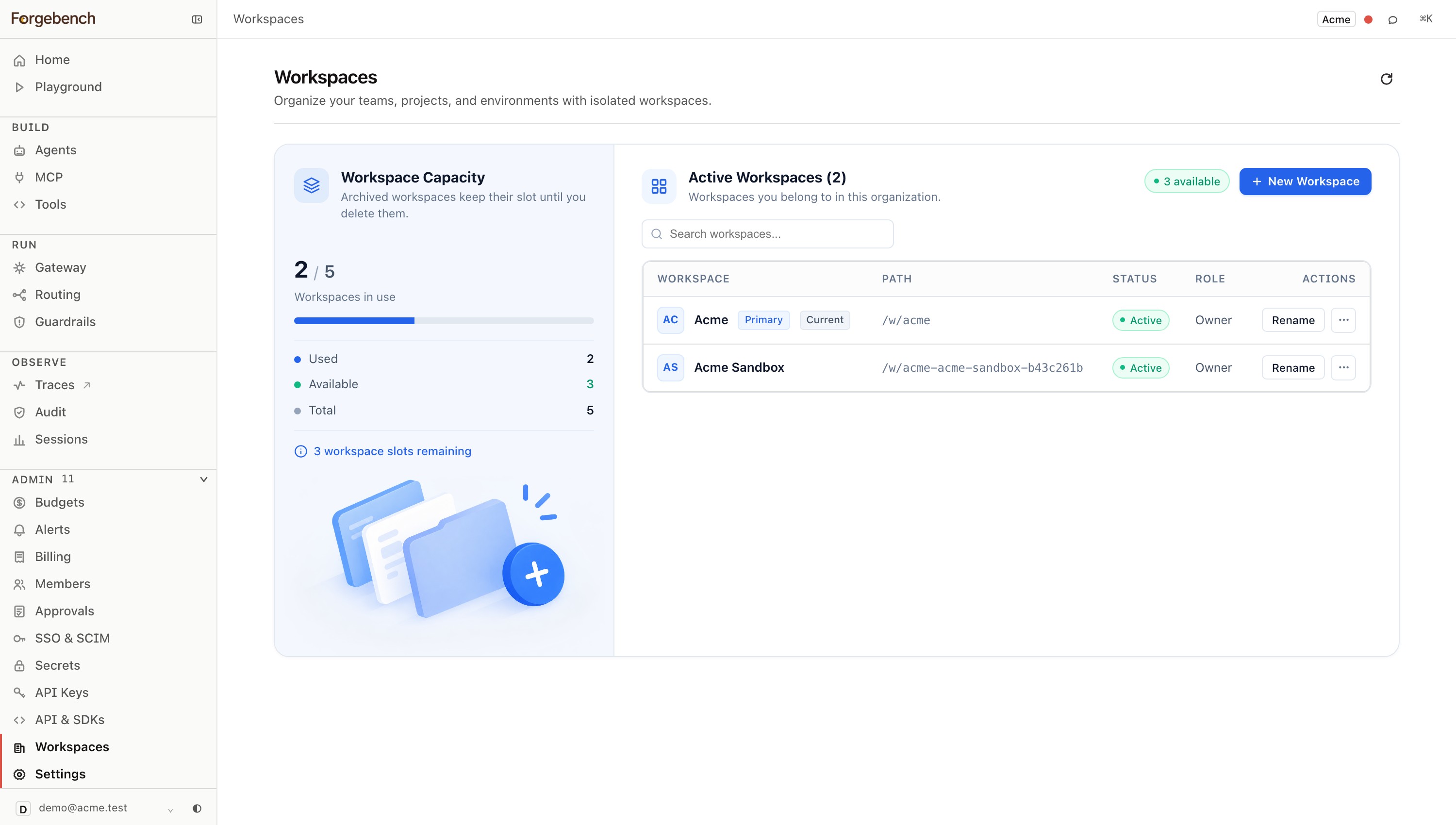
Manage workspaces
Open Workspaces
In the sidebar, expand Admin and choose Workspaces.
Create
Give it a name; the URL slug is generated for you. Creating, renaming or archiving requires being in the primary workspace, or a
workspaces:managegrant from an owner.Rename or archive
Renaming is immediate. Archiving keeps all data and history, but the workspace stops counting against your plan's limit and leaves the default switcher. To archive the primary workspace, set another as primary first.
Switch
Choose Switch to workspace from a row's menu.
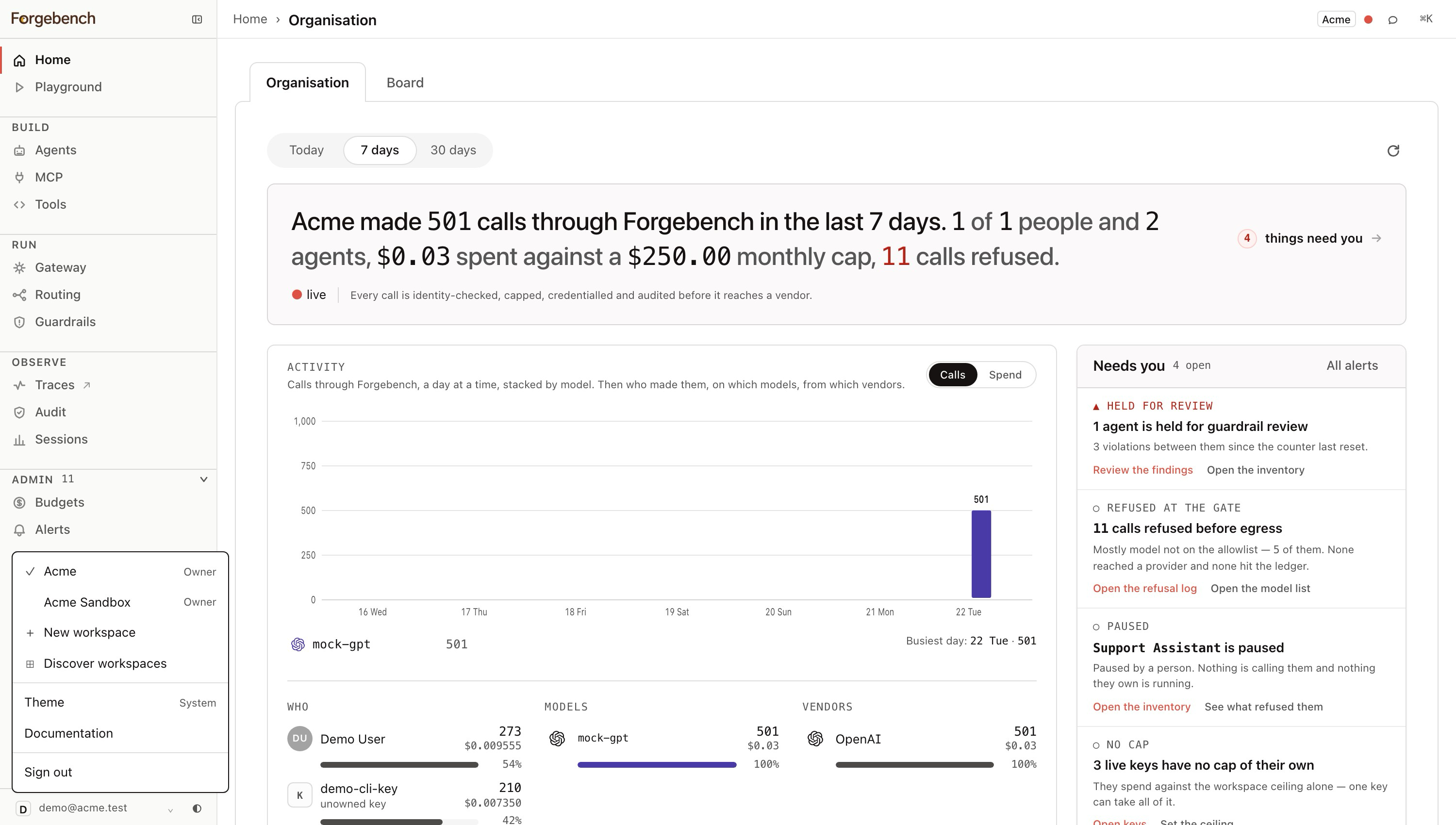
Switch from the sidebar footer
Click your account row at the bottom-left of the sidebar. It lists every workspace you belong to, in this org or another, with a checkmark on the current one. Pick one to reload the console in that workspace.
Workspace limits
Workspaces that aren't archived count against your plan's limit. At the limit, New Workspace is disabled; archive one or upgrade.
Joining workspaces in your org
When you sign in or verify an account on a company domain, Forgebench shows every workspace in your organization, not only the ones you belong to.
| Workspace state | What you see |
|---|---|
| Already a member | Open: goes to that workspace's dashboard. |
| Auto-join enabled | Join: you're added immediately, with the workspace's default role (viewer unless an admin changed it). |
| Approval required | Request access: the workspace's admins review it. The row shows "Pending approval" until they decide. |