

Members and roles
Four built-in roles (viewer, builder, admin, owner) cover most workspaces. When they don't fit, for example someone who can read the audit log but not touch billing, build a custom role. For people asking to join, see Access requests.
The sidebar isn't filtered by role: everyone sees every nav item, including Billing and SSO & SCIM. Opening a page your role can't use returns a 403.
Invite someone
Members → Invite
Enter an email and pick a role: one of the four system roles below, or a custom role in this workspace. To invite many people at once, choose Invite multiple people: type their addresses (each becomes a capsule) or import them from a spreadsheet (
.csvor.xlsx). Template downloads a CSV with theEmail,Nameheader the import reads.They open the email and accept
The link shows the workspace and role, with Accept or Decline.
They set a password, or continue with SSO
With password sign-in, submitting the password creates their account in the invited role. On an SSO-enforced workspace, accepting sends them to your SSO login, and the role applies when they finish.
No account exists until the last step. If the invitee closes the tab before setting a password or completing SSO, the same link still works.
The Members page
The page has five tabs: Members, Invites, Requests (see Access requests), Roles (see Custom roles) and Teams (see Teams). The page heading changes to the tab you're on.
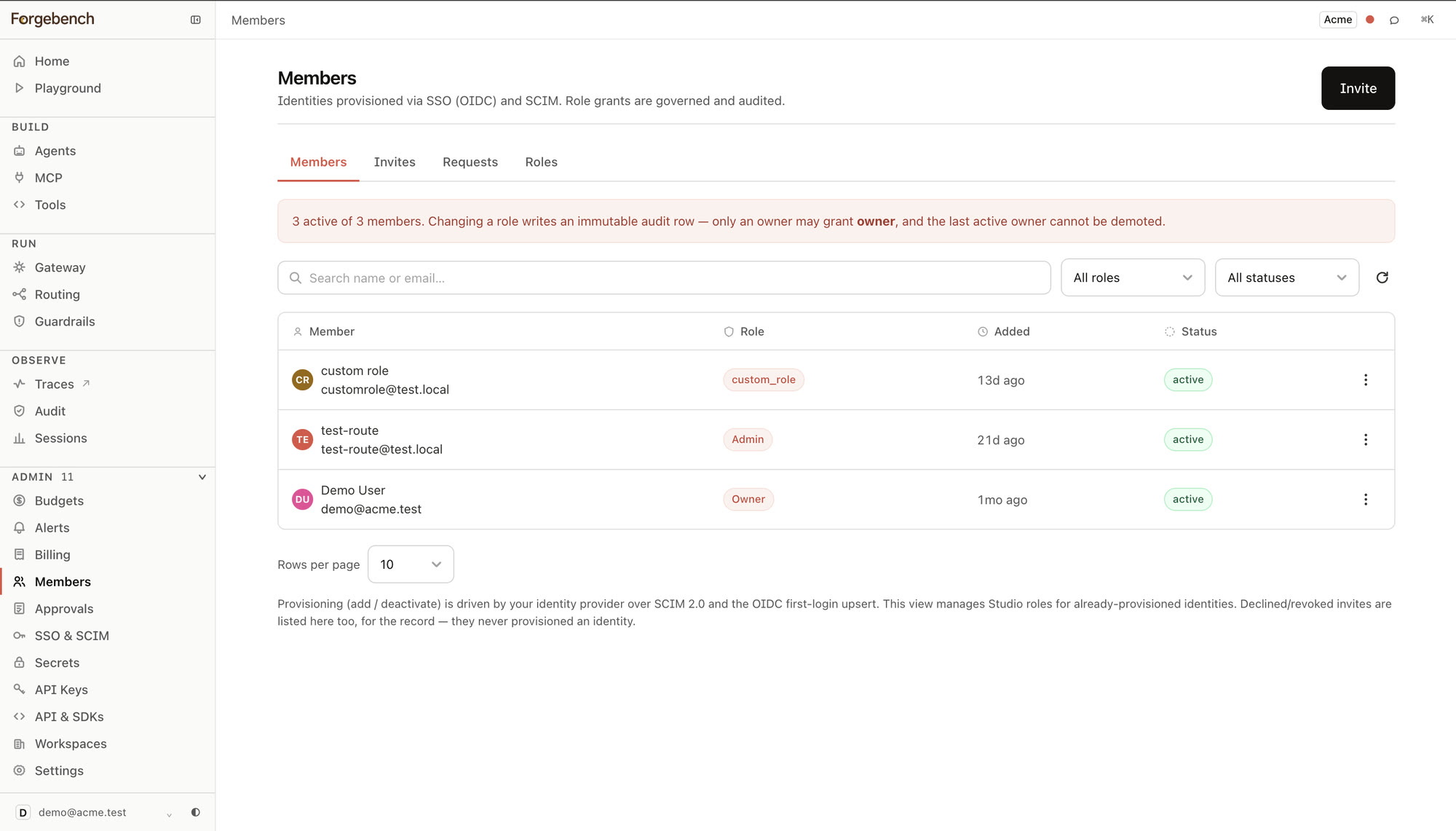
If someone loses their phone and recovery codes, an admin can click Reset two-step verification in that person's row menu. See Two-step verification.
This page changes the role of people who already exist. Adding or deactivating people is done by your identity provider, through SCIM provisioning or on a person's first SSO login.
The four system roles
| Role | What it can do |
|---|---|
| Viewer | The permissions your workspace gives Viewer. By default, reading the audit log. |
| Builder | The permissions your workspace gives Builder. By default, reading the audit log and model catalog, calling models through the gateway, and reading their own traces. A builder sees only traces of their own calls and agents. |
| Admin | Every permission except changing SSO/SCIM configuration. |
| Owner | Admin, plus SSO/SCIM configuration, granting owner, and changing or deactivating another admin or owner. |
Owner and Admin are fixed. Each workspace sets what Builder and Viewer carry: open Members → Roles, choose Edit from the Builder or Viewer row's menu, and tick permissions from the permission catalog. The change applies to everyone with that role, including people who join later. Reset to default restores the defaults. See Editing Builder and Viewer.
A builder or viewer with a permission such as agent editing still acts only on their own resources. Acting on someone else's agent, key or tool needs Admin, or a custom role with that permission.
A custom role replaces a member's role; it doesn't add to it.