

Budgets
Budgets are spend caps checked before a call reaches the provider. A call over a cap is refused and costs nothing. Each level can also carry a token cap, which limits volume instead of dollars.
The layers
A call must pass every cap that applies to it:
| Level | What it caps |
|---|---|
| Workspace | Total monthly spend for the workspace. Every call is checked against it. |
| Per model | Daily and monthly spend on one model. |
| Per key | Daily and monthly spend on one API key, so a prototype key can't cost what a production key can. |
| Per agent | Monthly spend on one agent, so one misbehaving agent can't use up the workspace budget. |
Every level above takes a USD cap, a token cap, or both. Token caps are monthly and daily at the workspace, model and key levels, and monthly at the agent level. A budget pool is capped in either dollars or tokens, chosen when you create it.
To share one cap across a group of keys, use a budget pool.
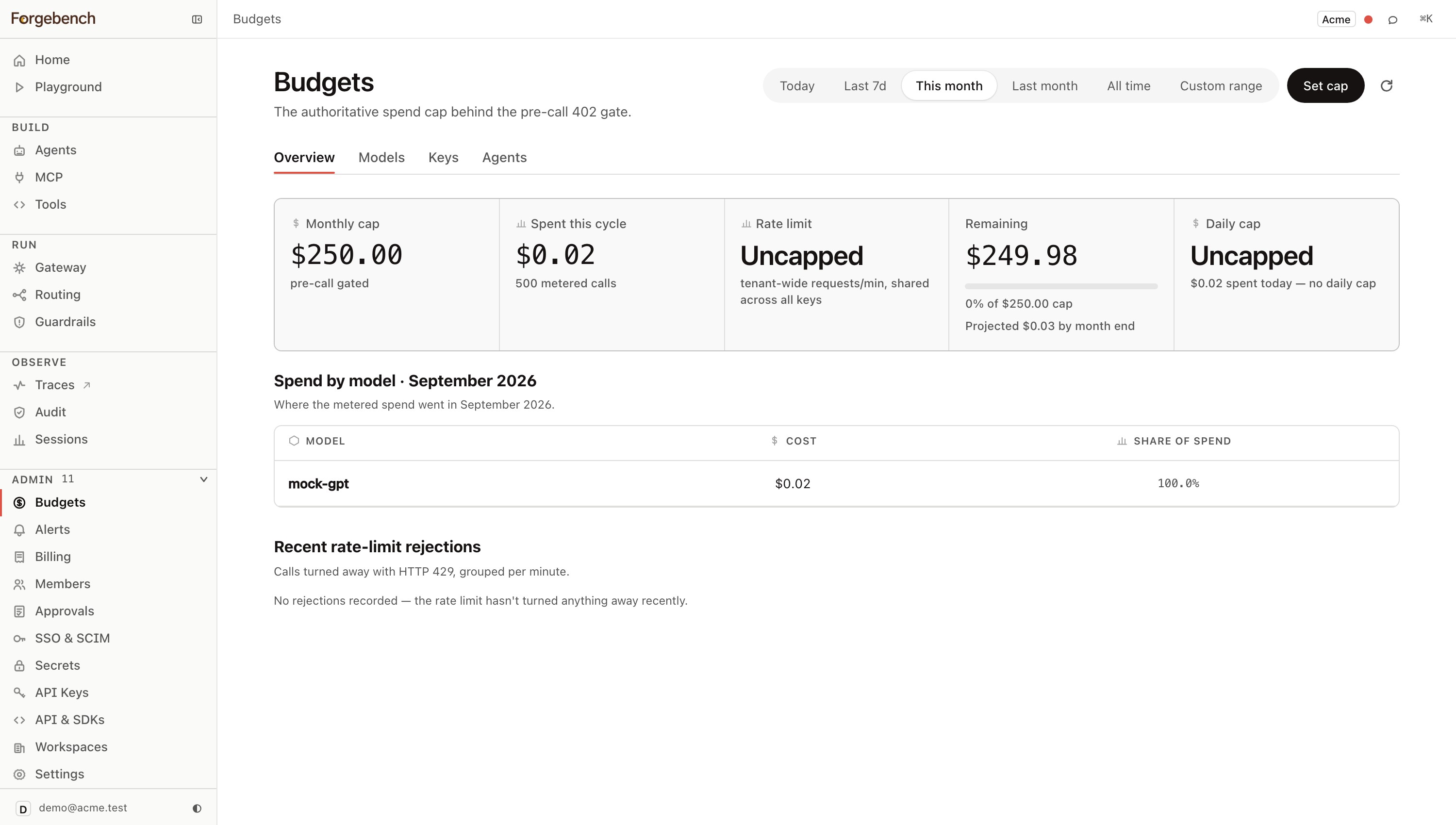
Set the workspace cap
Click Set cap
Top-right of the Overview tab.
Set the monthly limit (USD)
The workspace-wide cap.
Optionally set a daily limit (USD)
Resets every UTC day, independent of the monthly limit. Leave blank for no daily cap.
Optionally set token limits
A monthly and/or daily token limit for the whole workspace. Whole tokens, or shorthand like
250Kor1.5M(a bare decimal such as2.4is refused, since a cap is a whole number of tokens). Leave blank for no token cap. The daily limit can't exceed the monthly one.Optionally set a rate limit (requests/min)
Shared across every developer key in the workspace. Leave blank for no rate cap. A lower limit applies immediately, including to calls already made in the current minute.
Save caps
Caps apply from the next call.
Cap a model, key or agent
These caps add to the workspace cap; they don't replace it. You create keys and agents elsewhere, but edit their caps here.
Per model (Models tab)
Click Add model cap, choose the model, and set a monthly and/or daily limit (USD), a token limit, or both. To change one, click Edit on its row.
Per key (Keys tab)
Create keys on API Keys; edit their caps only here. Click Edit on the key's row and set a daily and/or monthly limit, in USD or tokens.
Per agent (Agents tab)
Register agents on Agents; edit their caps only here. Click Edit on the agent's row and set a monthly limit in USD, tokens, or both. See Agents.
Token caps show up next to the USD caps wherever they apply:
- Budgets: the Overview has a Token caps stat, and the Models, Keys and Agents tables each have token columns with tokens used against the cap.
- API Keys and Agents: a key's ceiling cell and inspector list its token caps, and an agent's overview and inspector show its token ceiling and tokens used this cycle.
- Bulk edit: the Edit caps action on Budgets, API Keys and Agents can set or clear token caps on many rows at once.
- Audit log: every change to a token cap is recorded with its before and after values.
- Alerts: a token cap raises the same threshold alerts as its spend cap. See Alerts.
- Approvals: a budget-increase or new-key request can ask for token caps.
- Settings, Playground, Billing and Deployments: Settings and the Playground show the workspace token cap, Billing shows tokens used this month against it, and a deployment's panel shows the token ceiling frozen at publish time.
A blank cap removes the ceiling at that level only. The workspace cap still applies, and nothing turns the check off. A key or agent with no cap of its own can still spend the whole workspace budget.
What a refusal looks like
Over the cap, Forgebench returns 402:
{
  "detail": {
    "code": "budget_exceeded",
    "message": "monthly budget exceeded",
    "limit_usd": "0.000100",
    "spent_usd": "0.000385",
    "attempted_cost_usd": "0.005000"
  }
}
attempted_cost_usd is what the call would have cost. Use it to tell a cap set too low from a single call that is unreasonably expensive.
A call is refused when spent + attempted would cross the cap, so you can be refused while showing headroom. With $0.00542 spent against a $0.01 cap, a $0.005 call is refused because $0.01042 is over.
Token caps
A call that would push token usage over a token cap is refused the same way, with a different code:
{
  "detail": {
    "code": "token_cap_exceeded",
    "message": "key daily token cap exceeded",
    "level": "key",
    "period": "daily",
    "scope_id": "3f6c1a52-0d1e-4c53-9a3e-6a1f0f7d2b10",
    "limit_tokens": 1000000,
    "used_tokens": 998200,
    "attempted_tokens": 4100
  }
}
level is tenant, model, agent or key; period is monthly or daily; scope_id is the model, agent or key the cap belongs to (null for the workspace cap). Text and embedding calls count against a token cap: chat, /v1/embeddings, /v1/rerank, and the embeddings forgebench makes for you when it indexes and searches a knowledge base. An embedding made for a request that used an API key also counts against that key's token caps and its budget pool. Image and audio usage is not measured in tokens.
Token caps look at tokens already used plus an estimate for the incoming call (prompt tokens plus an assumed completion), and they hold nothing while a call runs. Calls running at the same moment can each pass the check before any of them is counted, so a cap can be overshot by about one call per request in flight.
The SDKs raise a typed error: BudgetExceededError, or BudgetExceededException in Java. Handle it by queueing, falling back to a cheaper model, or telling the user.
from forgebench import Forgebench, BudgetExceededError

client = Forgebench(api_key="sk_...", base_url="https://api.forgebench.ai")
messages = [{"role": "user", "content": "hello"}]

try:
  resp = client.chat.completions.create(model="mock-gpt", messages=messages)
except BudgetExceededError as e:
  log.warning("budget gate refused the call: %s", e)
import { Forgebench, BudgetExceededError } from "@seedlinglabs/forgebench-sdk";
const forgebench = new Forgebench({ apiKey: "sk_...", baseUrl: "https://api.forgebench.ai" });
const messages = [{ role: "user" as const, content: "hello" }];
try {
const res = await forgebench.chat.create({ model: "mock-gpt", messages });
} catch (e) {
if (e instanceof BudgetExceededError) {
console.warn("budget gate refused the call", e.body);
} else {
throw e;
}
}import ai.forgebench.ChatCompletionRequest;
import ai.forgebench.ChatMessage;
import ai.forgebench.Forgebench;
import ai.forgebench.errors.BudgetExceededException;
import ai.forgebench.types.ChatCompletion;
import java.util.List;
Forgebench client = Forgebench.builder().apiKey("sk_...").baseUrl("https://api.forgebench.ai").build();
List<ChatMessage> messages = List.of(ChatMessage.user("hello"));
try {
ChatCompletion resp = client.chat().completions().create(ChatCompletionRequest.builder()
.model("mock-gpt")
.messages(messages)
.build());
} catch (BudgetExceededException e) {
log.warn("budget gate refused the call: {}", e.getBody());
}curl -X POST https://api.forgebench.ai/v1/chat/completions \
-H "Authorization: Bearer sk_..." \
-H "Content-Type: application/json" \
-d '{
"model": "mock-gpt",
"messages": [{"role": "user", "content": "hello"}]
}'
# 402 over budget: see the body shape above.Token caps follow the same rules
Token caps use the same policies as dollar caps:
- A narrower token cap must fit inside the cap above it (a key inside its agent, an agent inside the workspace). A workspace token cap can't drop below caps already set under it.
- The workspace policy can set optional token defaults, and a self-service ceiling,
builder_self_service_max_monthly_tokens. Until an admin sets that ceiling, builders can lower an agent's token cap or set the first one, but any raise needs an admin. Above the ceiling, raises go to approval. - Over-limit changes return
403 self_service_limit_exceededwithmax_monthly_tokens.
Refusals are recorded
Each refused call is logged with its reason. Check that log first when an integration stops working after someone tightens a cap. See Errors and refusals for what each reason means.
Alerts
Set thresholds on Alerts to hear about spend before calls are refused. Crossing a threshold notifies Slack or email, wherever the spend happens, including the Playground. Set the threshold low enough that you still have room to act; at 100% it's too late.