

Developers
Gateway → Developers covers your developers' AI coding tools: the calls they route through Forgebench, the sessions they capture, what they cost, and who may use which model. It has two sources of data:
| Source | What it is | Comes from |
|---|---|---|
| Routed requests | Model calls a tool sent through the Forgebench gateway: governed, metered, and able to fail over. | Gateway setup for the tool |
| Captured sessions | Session counts, models, branches and available token usage, as reported by the tool. | The Forgebench CLI's hooks, or OpenTelemetry |
Which setup is yours
It depends on who pays for the model.
| You pay for models with | Use | What reaches Forgebench | Shows up in |
|---|---|---|---|
| Your own subscription (Claude Pro or Max, ChatGPT, Cursor, GitHub Copilot) | Session reporting: your tool keeps calling its vendor; Forgebench records what each session used | Tokens, models, cost estimates and session metadata. Never prompts or code. | Captured sessions |
| A Forgebench API key (your workspace pays the provider) | The gateway: your tool's model calls go through Forgebench | Each model call, governed: budgets block at the cap, routing rules and fallbacks apply | Routed requests |
Both start with the same setup on each machine. Claude Code and Codex CLI report over OpenTelemetry; Cursor, GitHub Copilot, Antigravity and OpenCode report through the CLI's session sync. Admins can also turn on OpenTelemetry for a whole team with managed settings (Claude Code, Codex CLI, Gemini CLI) or in Cursor's Team Settings (Cursor Enterprise). Claude Cowork reports over OpenTelemetry and appears as its own source.
Cursor keeps no token counts on your machine, so a captured Cursor session has no cost until an admin connects Cursor (Business or Enterprise) under Vendor connections. The session then shows the cost Cursor reported for that conversation, labelled reported by Cursor.
What you see depends on your plan and role
Developer insights (captured sessions, usage estimates and reports) need the Enterprise plan. Every plan has the gateway, with different tabs:
| Enterprise | Free and Pro | |
|---|---|---|
| Developers tabs | Home, Usage & costs, Activity and AI report (Personal); Briefing, Adoption & Impact, Economics and Teams (Team). | Gateway health, Models, Requests, Usage and Configuration. Developer insights shows admins what the Enterprise plan adds. |
| Opens on | Home (Personal) or Briefing (Team) | Gateway health for admins, Models for builders, Requests for everyone else. |
Your role decides the rest:
- Requests, your own routed calls, is open to every member.
- Models needs the
models:viewpermission, or the builder role or above. - Gateway health, Usage and Configuration are for admins and owners.
- The Team view needs the admin role or
sessions:read. - Under Apps & agents, admins see all four tabs. Other members with Models access see Fallbacks and Models only, and the Apps & agents row is hidden from members without it.
Personal and Team
On Enterprise, a switch at the top changes the view. Personal shows your
own requests and sessions. Team shows everyone's, for admins and
members with sessions:read.
| Personal tab | Shows | Team tab | Shows |
|---|---|---|---|
| Home | Your summary and what drove usage | Briefing | What needs attention, usage, adoption by team |
| Usage & costs | Captured and routed usage, plans | Adoption & Impact | Who reports, what it delivered, and the activity records |
| Activity | Routed requests, captured sessions, branch activity | Economics | Spend by model, task, plan and vendor |
| AI report | Your report | Teams | Membership, coaching coverage, profile comparison |
Details: Personal view · Team view.
Routed requests
Activity → Routed requests lists your gateway calls, newest first, with how many fell back to a later model, how many failed, and their cost. Filter by outcome, or search by model, provider, profile or tool.
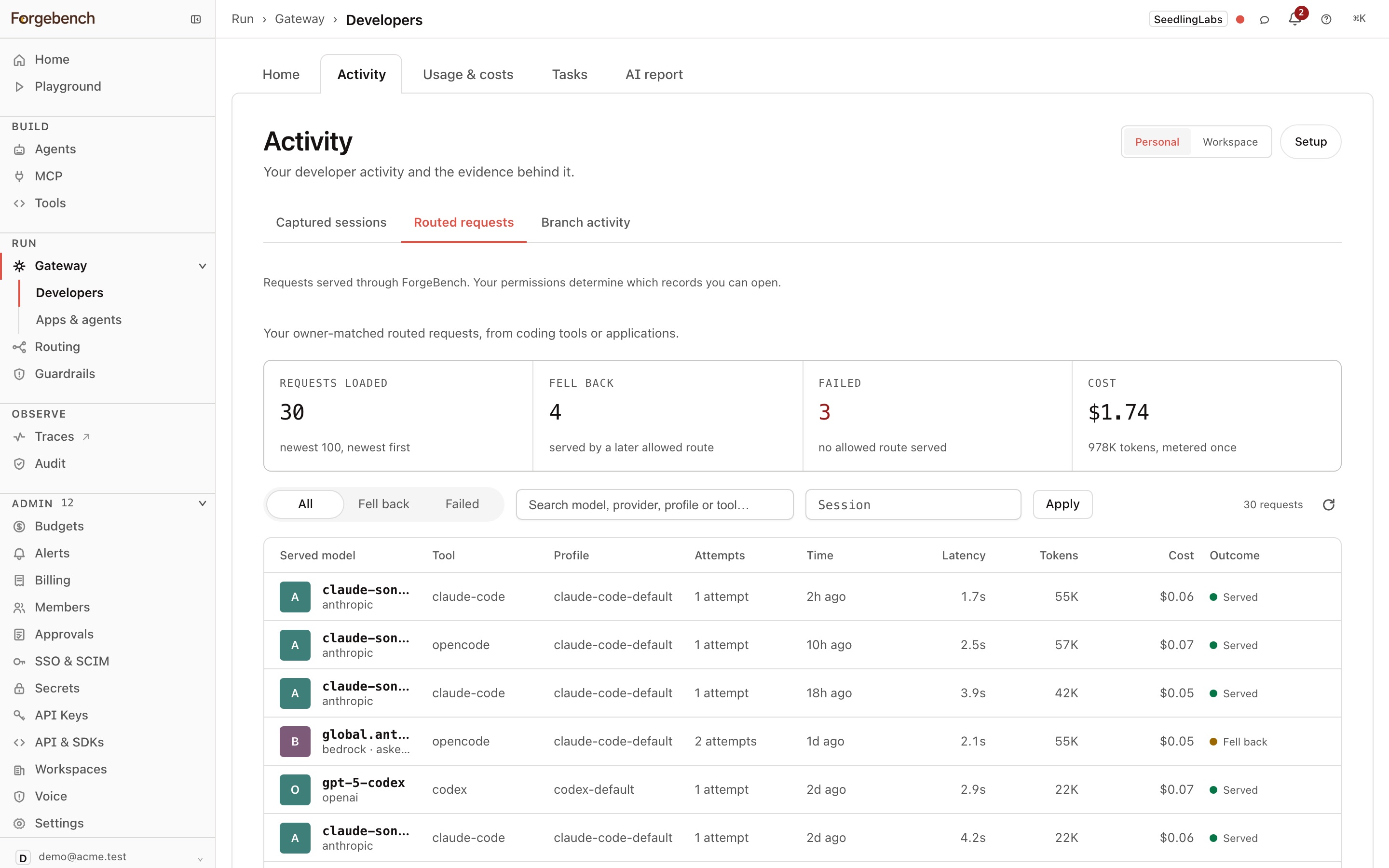
Open a request to see how it was served:
- Candidate selection: the profile's fallback order, and whether it was reordered for health and quota.
- Provider attempt: each provider tried, and the one that answered.
- Policy and budget: the rule that matched and how close the budget is.
- Cost.
You see your own requests; admins see the workspace's.
Setup
Developers choose Setup guide to install the CLI, then set up capture (their own subscription) or the gateway (a Forgebench API key). See Setup.
Admins choose Setup to open Configuration:
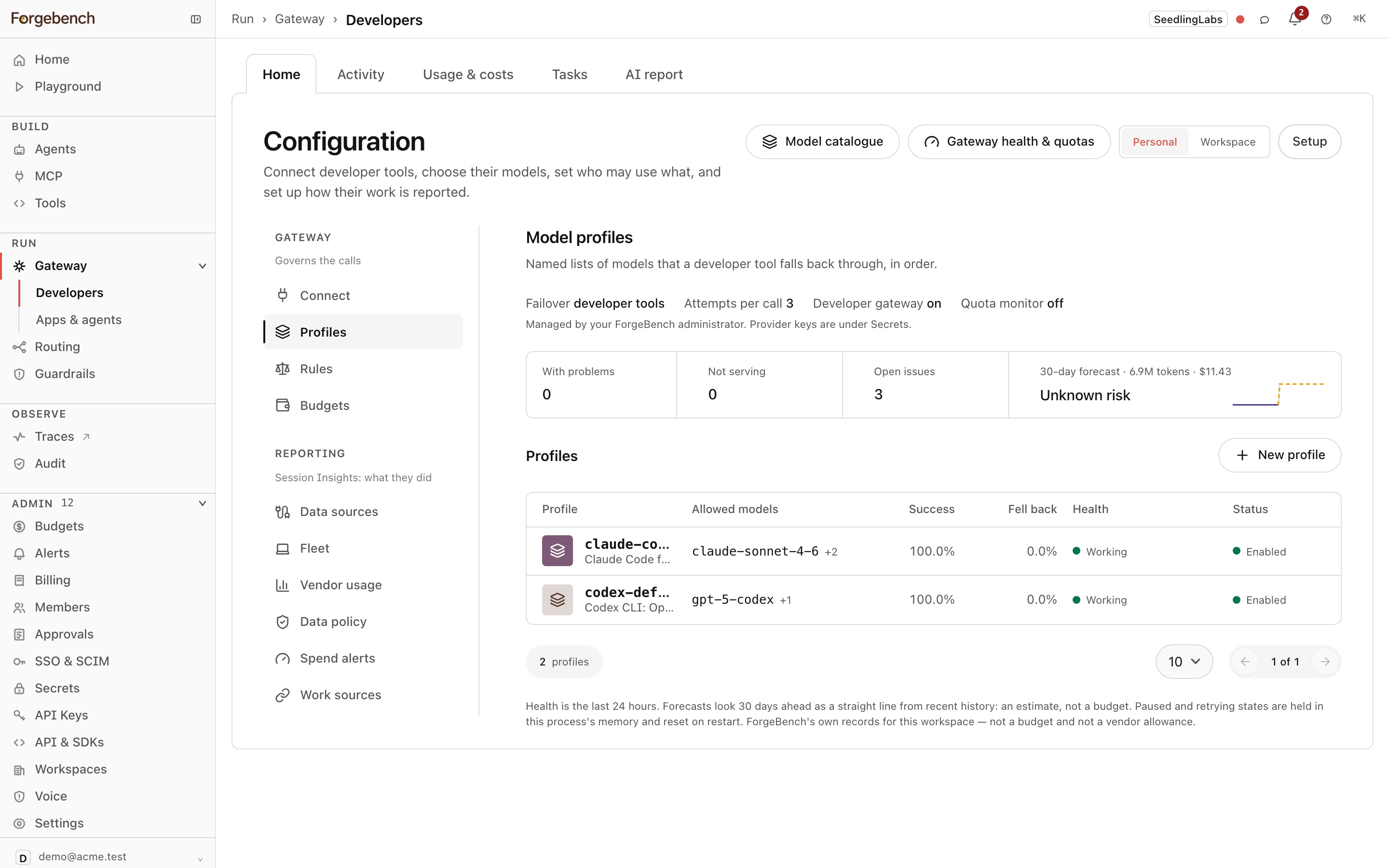
| Section | What it's for |
|---|---|
| Gateway: governs the calls | |
| Connect | Point a tool at Forgebench so its calls are governed, metered and can fail over. |
| Profiles | Model profiles: named lists of models a tool falls back through, in order. |
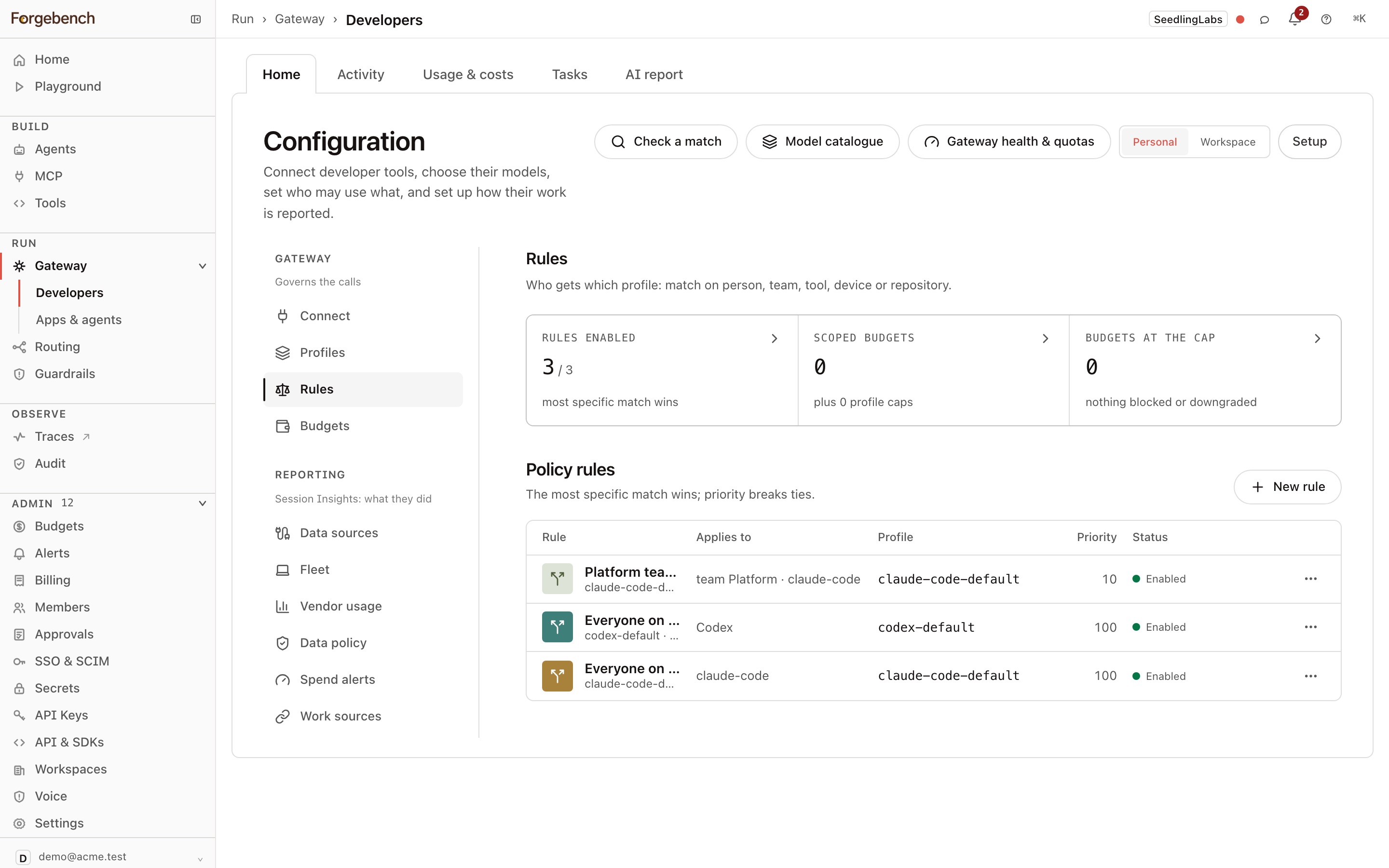
| Rules | Who gets which profile, matched on person, team, tool, device or repository. The most specific match wins. Check a match tests one. |
| Budgets | Spend caps the gateway enforces, by person, team or profile. |
| Reporting: captured sessions | |
| Data sources | Which tools report, and the managed settings that make them report. |
| Fleet | Which laptops and tools are reporting, and which look misconfigured. |
| Data policy | What is published about individuals, and to whom. |
| Spend alerts | Caps on reported spend that alert but never block, and the tool fees you declare. |
To connect Jira, ClickUp, Linear, or GitHub for task and delivery reporting, see Connect work sources.
Gateway budgets block calls at the cap. Spend alerts on reported usage only warn.