

Personal view
Part of Gateway → Developers.
Once reporting is set up, open Gateway → Developers. The Personal view covers your own work in four tabs: Home, Activity, Usage & costs, and AI report. If you can see others' data, the Personal / Team switch at the top shows the Team view.
Home
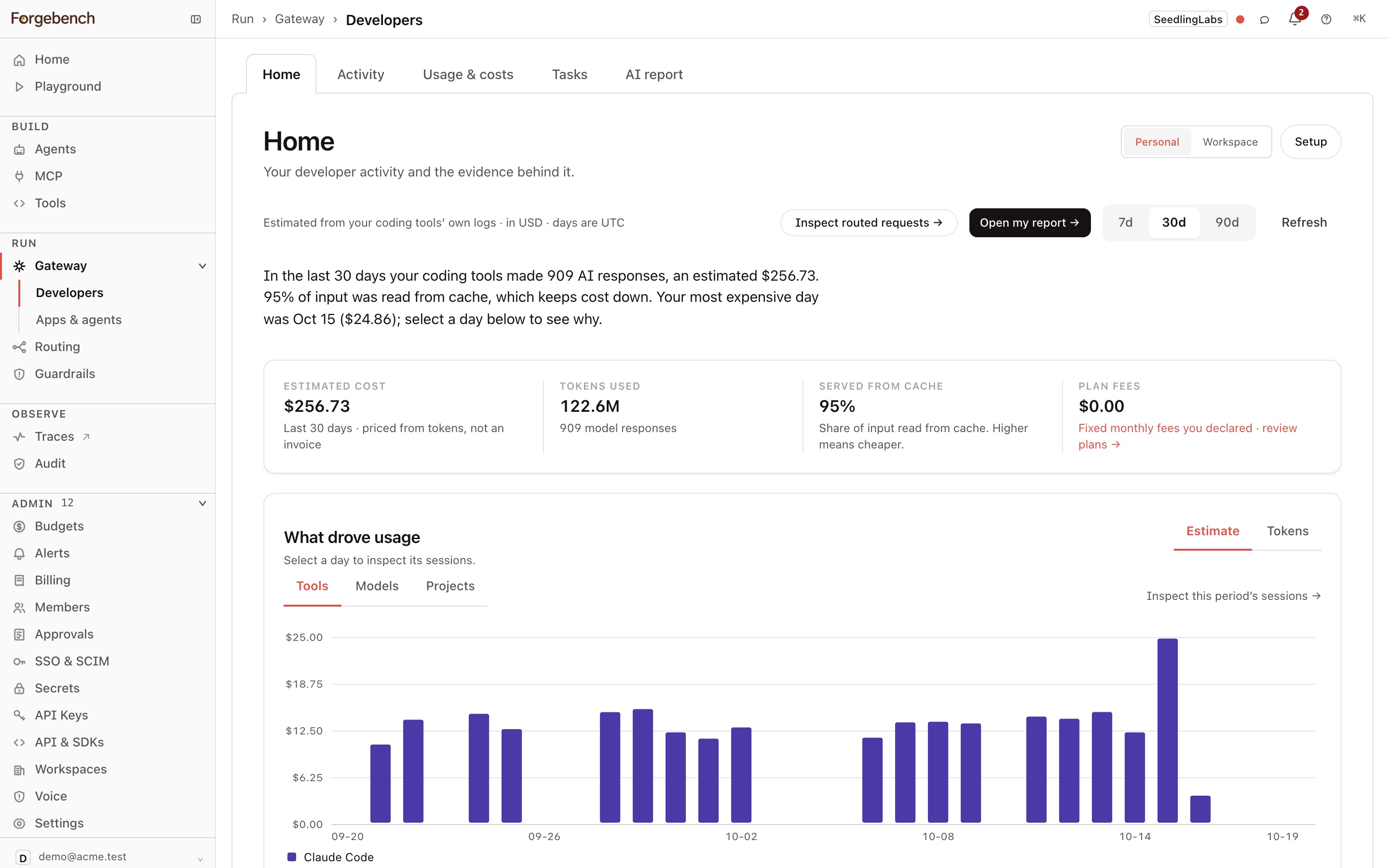
A summary of your captured usage for 7, 30, or 90 days:
- A one-sentence summary: AI responses, estimated cost, input read from cache, and your most expensive day.
- Four figures: Estimated cost (priced from tokens, not an invoice), Tokens used, Served from cache, and Plan fees (fixed monthly fees you declared).
- What drove usage: each day by estimate or tokens, split by tool, model, or project. Select a day to see its sessions.
- A table of usage by tool, model, or project.
- What you worked on: the branches your sessions started on.
Open my report goes to your AI report. Inspect routed requests opens the requests you sent through the gateway.
Activity
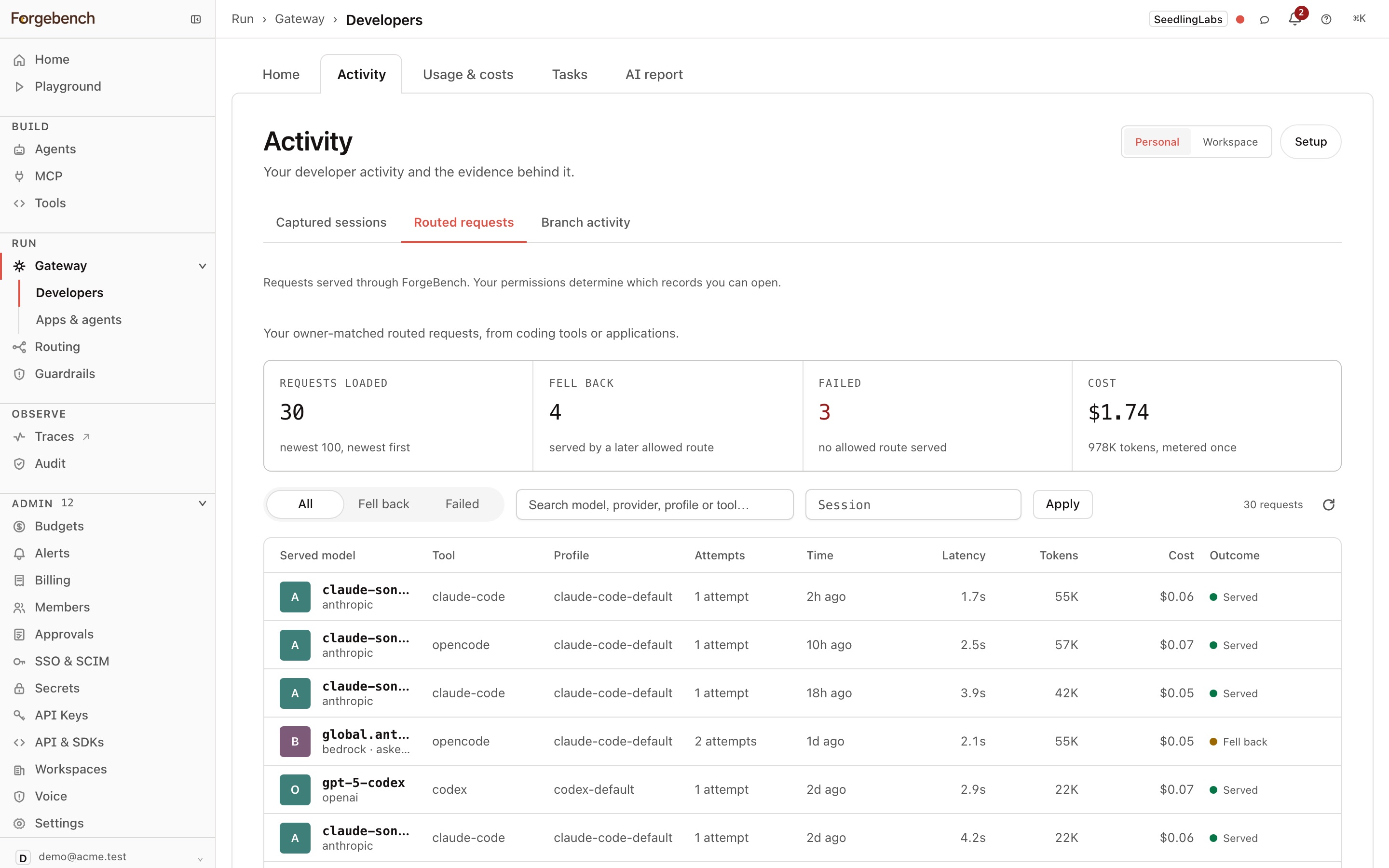
- Captured sessions: for 24 hours, 7 days, 30 days, or all time, shows sessions per day, total calls and tokens, and machines reporting. The table lists each session's start time, branch, machine, tool, models, calls, tokens, and duration. Figures update live.
- Routed requests: the model calls you sent through the Forgebench gateway, and how each was served. See Developers.
- Branch activity: the branches you worked on and how much each used.
Usage & costs
Each source is kept separate:
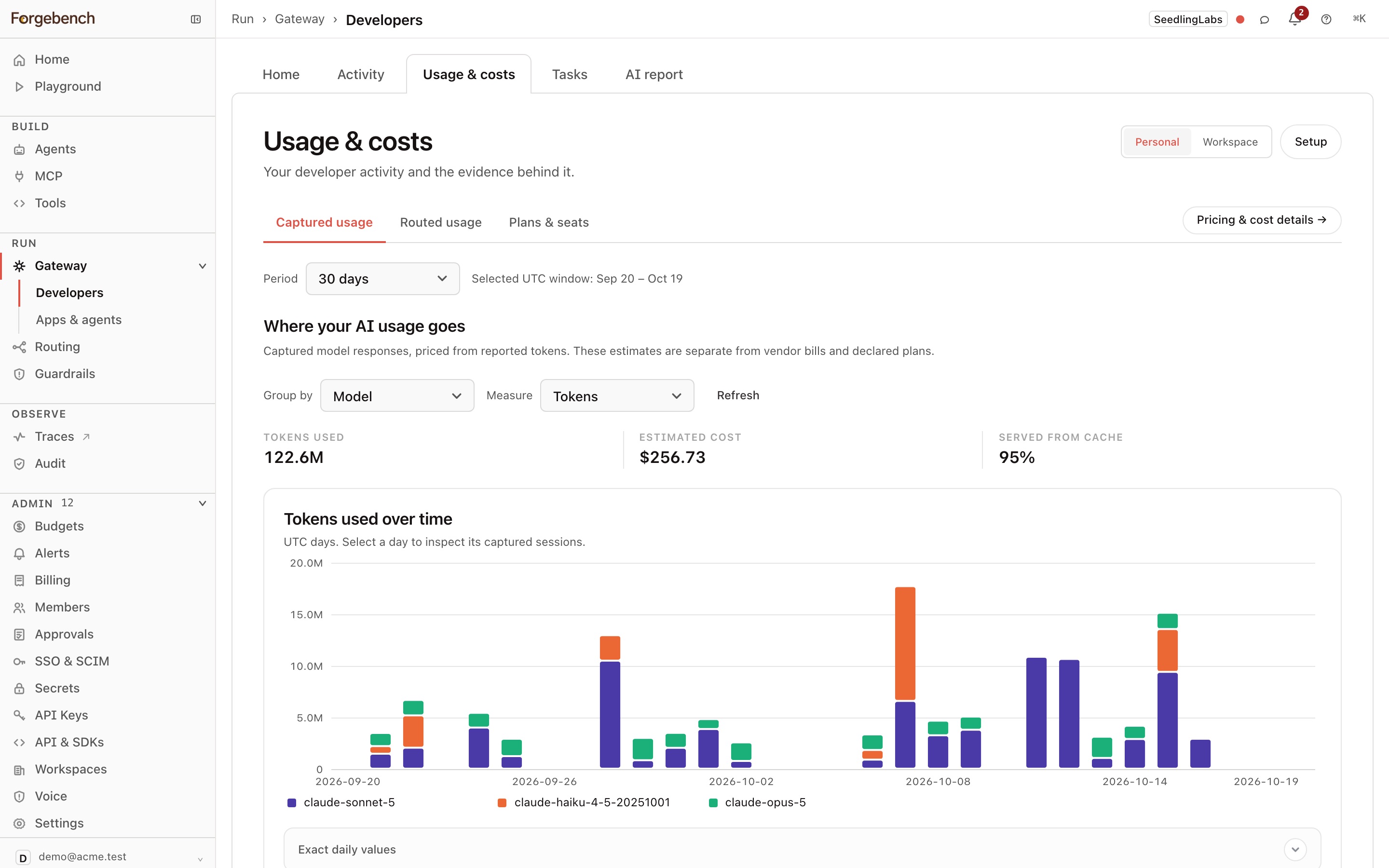
- Captured usage: tokens, usage estimate, and cache-read share for 7, 30, or 90 days, grouped by model, tool, or project, plus the sessions with the highest estimates.
- Routed usage: requests served through the gateway.
- By task: captured sessions associated with tracker tasks.
- Plans & seats: the subscriptions you've declared.
Pricing & cost details opens Costs & plans:
- Usage estimates: spend for 7, 30, or 90 days, or all time. Shows the total, the top model, a daily chart by model, and a breakdown by model, tool, or project. Running totals cover Tokens, Prompt reuse (input served from cache), AI responses, and a Projected month from the trailing week's rate.
- Subscriptions: your declared plans and their monthly cost.
Session costs are estimated at public API rates from the tokens your tools report. They are not an invoice, and they're kept separate from plan fees. Cursor reports no tokens on your machine, so Cursor sessions have no usage estimate here. When your admin connects Cursor, Personal → Usage & costs → By task shows each Cursor session's cost as Cursor reported it, labelled reported by Cursor. That figure is partial until Cursor's next hourly import after the session ends.
Work by task
Open Personal → Usage & costs → By task to see tasks with confirmed links to your captured sessions. Select a task title to inspect the sessions, or a suggestion count to review pending links. Unmatched sessions remain in Activity → Captured sessions.
Search by task title or key. Connections opens tracker setup; managing a connection requires workspace administration access. The usage help or warning icon explains incomplete capture and the accounting rules.
Session tokens can include suggested and shared sessions. Task costs include only confirmed, exclusive usage. Partial is a known portion; Unavailable is not zero. See Task usage for the inclusion rules and Connect work sources for linking and correction.
AI report
A written summary of your working style across five scored dimensions: steering, delivery, planning, quality, and design sense. The dimensions describe style, not a scale from worse to better. A radar chart plots them against what is typical here. Below are figures such as longest session, longest streak, and total time working with an agent, each explained.
- Overview: the summary and your scores against what is typical.
- Analysis: for each dimension, the score, what is typical, the contribution from subagents, and the terms from your own messages that moved the score. It also shows when you tend to work, how often you redirect an agent with a new direction rather than a bare stop, and a history of every scoring run.