

Pool alerts
A pool raises an alert when its spend, or one key's spend against its share, passes a percentage you choose. Each percentage fires once per period.
| Alert | Fires when |
|---|---|
| Pool limit | The pool's total spend passes a percentage of its limit. |
| Member share | One key's spend passes a percentage of its own share. The alert names the key and its owner. |
| Forecast | The forecast says the pool will run out before the period ends. Needs the forecast turned on. |
The default percentages are 50, 75, 90, 95 and 100. A call that jumps over several percentages sends one alert, for the highest.
A call the pool refuses also alerts: if the pool, or the key's share, is at least 90% used when it refuses a call, the alert for the highest percentage not yet sent (up to 100%) goes out then, rather than waiting for spend to reach the limit. A token pool's alerts give the figures in tokens.
Where alerts go
| Channel | Who gets it | Set it up in |
|---|---|---|
| The addresses you list for the pool. | The pool's Alerts tab, or the Alerts page | |
| Slack | A Slack webhook. | The Alerts page |
| In-app notifications | By default, the people whose email is on the pool's alert list. Shown in the bell and on the notifications page, and as a pop-up once per browser. | The pool's Alerts tab |
Emails
Pool emails are alert channels. A channel for a pool shows both on the pool's Alerts tab and on the Alerts page, and you can edit it in either place.
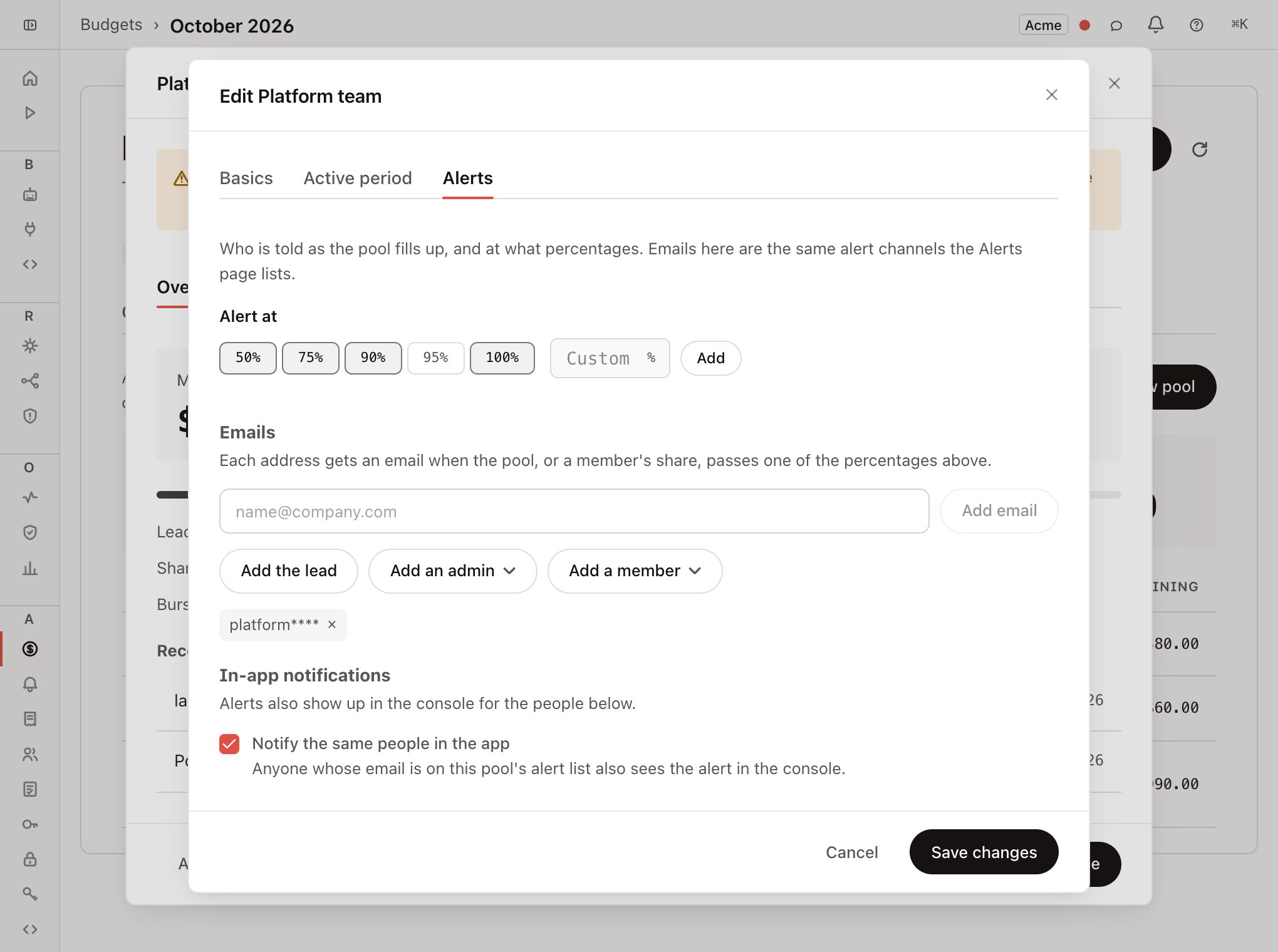
Open the pool's Alerts tab
On Budgets → Pools, click the pool, click Edit pool, then the Alerts tab.
Set the percentages
Click the chips for 50, 75, 90, 95 and 100 to turn them on or off. To use another number, type it in the custom field and click Add. Pick at least one.
Add addresses
Type an address and click Add email, or use Add the lead, Add an admin or Add a member (the last two open a list; anyone already added is greyed out). On a new pool, picking the lead adds their address.
Click Save changes
Each address becomes an email channel for this pool. If one fails, the pool is still saved and the error is shown.
- Channels created here copy the pool's percentages and follow later changes to them. A channel you edited on the Alerts page keeps its own percentages until the pool's change again.
- Existing addresses are shown masked, for example
finance@****. Remove one with its ×, which deletes the channel when you save. - Channels that also cover other pools, or every pool, are listed under the addresses as read-only. Edit them on the Alerts page.
- Adding an address that is already a channel for this pool is refused with a 409.
- Add an admin and Add a member copy the person's current address. They don't follow later changes to who the admins or members are.
Pools created before emails became channels
Older pools sent email straight to the lead and admins. They no longer do. Add their addresses on the pool's Alerts tab.
Slack and the Alerts page
Open Alerts, click Add channel, and pick the Budget pools condition.
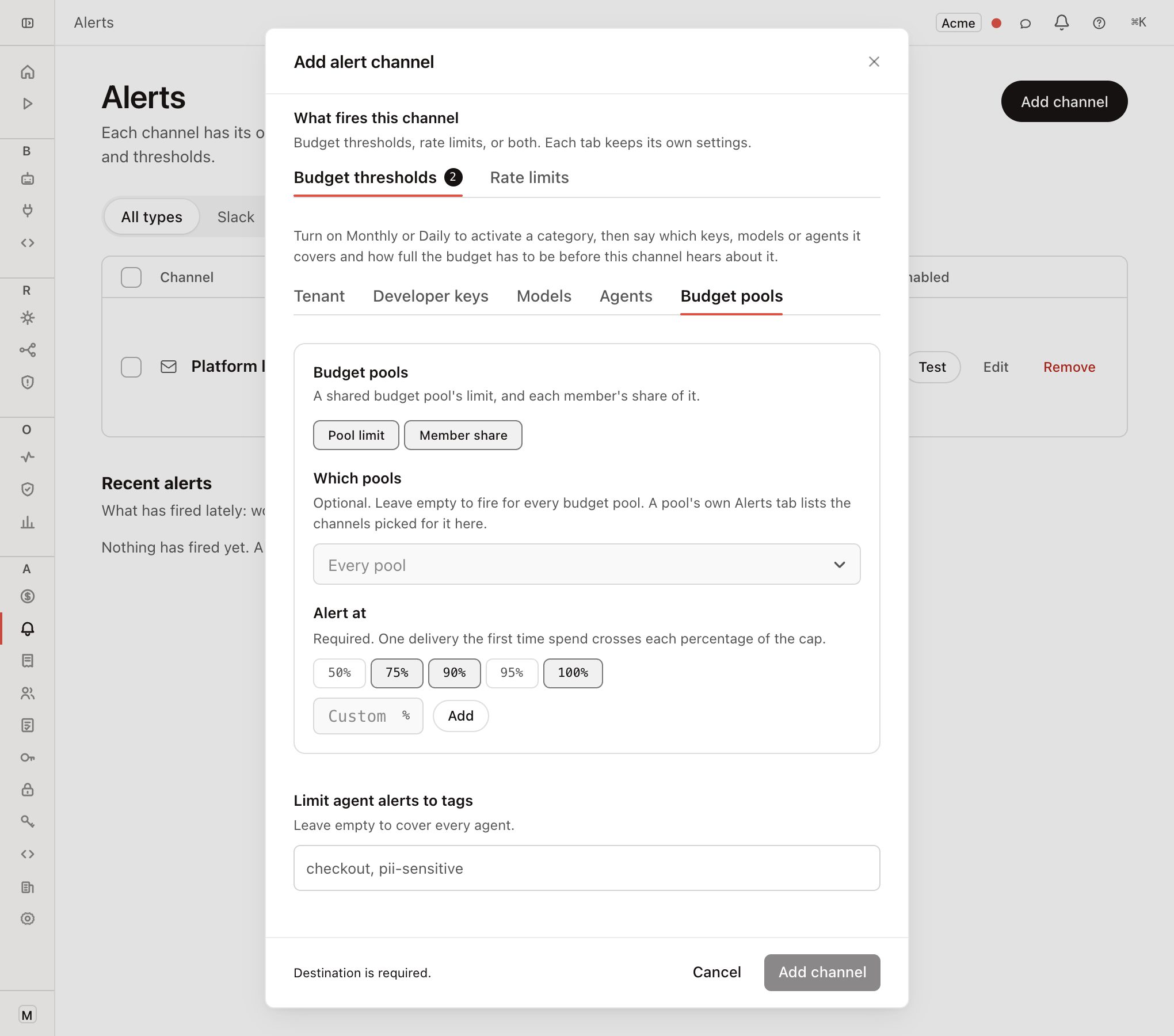
| Setting | What it does |
|---|---|
| Pool limit / Member share | Which of the two alerts this channel hears. Turn on one or both. |
| Which pools | The pools this channel covers. Leave empty for every pool. |
| Alert at | The percentages for this channel. Required. |
A channel can use percentages the pool doesn't list; a channel set to 60% fires at 60% regardless.
The same address can cover different pools, one channel per pool. A second channel for the same address and the same pool, or two for the same address that both cover every pool, is a 409.
The channel list shows which pools each channel covers.
In-app notifications
On the pool's Alerts tab, Notify the same people in the app is on for new pools. In-app alerts then go to active users whose email matches an enabled email channel covering the pool (for this pool or every pool). Slack channels aren't matched.
Turn the toggle off to choose up to 20 people yourself, the same way as the email list. Each must be a user in the workspace.
Pools created before this toggle existed keep their earlier settings, with the toggle off.
Each person gets their own copy. Deactivated people are skipped. If nobody would get an in-app alert, the pool shows a warning.
Alert history
| Where | Shows |
|---|---|
| Pool → Overview → Recent alerts | Every crossing on that pool, whoever it was sent to. Admins and the lead see all of them. A member sees the pool's and their own share's. |
| Alerts page → Recent alerts | Workspace alerts and the pool alerts addressed to you, newest first. |
| Dashboard → Budget alerts | The same merged list, with pool rows tagged Pool. Add the widget with Customize. |
| Dashboard → Budget pools | Each active pool with its spend bar, fullest first. |