

Team view
Part of Gateway → Developers.
Open Gateway → Developers and switch from Personal to Team.
Admins and members with sessions:read get this view. Its tabs are
Briefing, Adoption & Impact, Economics, and Teams. Admins set
up reporting under Setup, which opens Configuration.
Admins see the whole workspace. A team lead with sessions:read sees the
teams they lead, including subteams, when Leads see their own team only is
on: every total, roster and comparison covers those teams, and the team name
shows beside the Personal / Team switch.
Briefing
The team briefing for the selected period:
- Needs you: developers who have never reported, reporting identities not linked to anyone, and, when work sources are enabled, a missing or silent Jira, ClickUp, Linear or GitHub connection.
- Usage, delivery and tool figures, each opening the page behind it.
- Adoption by team: who reported in the last 30 days, through session export or OpenTelemetry.
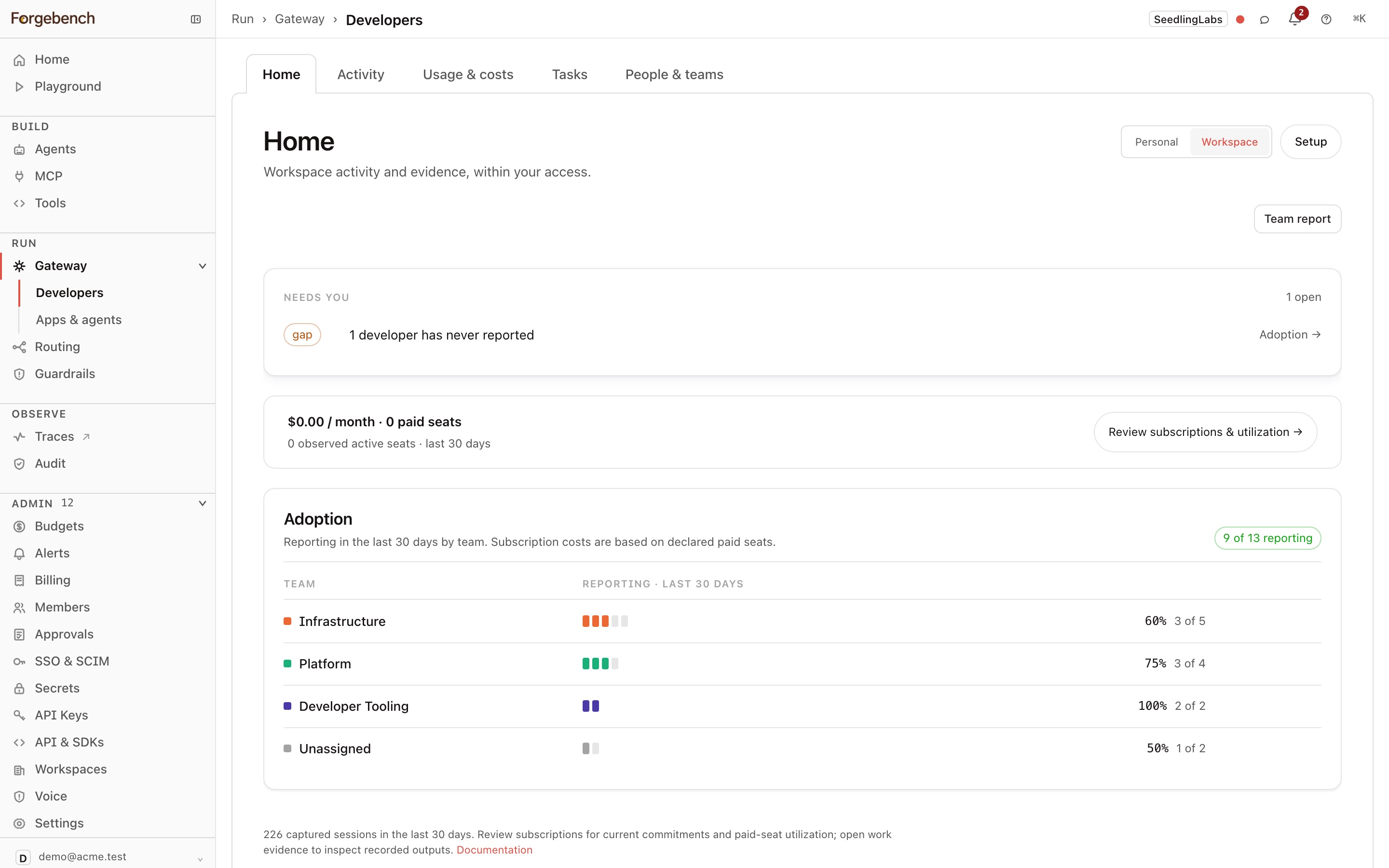
Download the team report
Team report builds a PDF for engineering leadership: AI adoption and its trend, tools and repositories used, delivery outcomes, savings, and governance.
Open the report dialog
On the Team Briefing tab, choose Team report.
Pick the period
Under Report covers, choose Week, Month, Quarter, or Custom, then pick the period or date range. A week includes per-engineer detail; a month or quarter focuses on trends. Custom ranges up to 10 days use the weekly layout, up to two months the monthly layout, and longer the quarterly one.
Download it
Choose Download PDF.
The report needs admin or sessions:read. An admin gets the whole
workspace; a team lead gets their own team.
Admins' reports also include Developer insights · Gateway usage, built from calls developers' keys made through the gateway. It covers:
- governed calls and call success
- gateway spend, and spend per developer
- failed calls
- spend by model, and against key budgets
Captured sessions are under Developer insights · AI coding tools.
Adoption & Impact
Three sections: Adoption, Impact and Activity.
Adoption
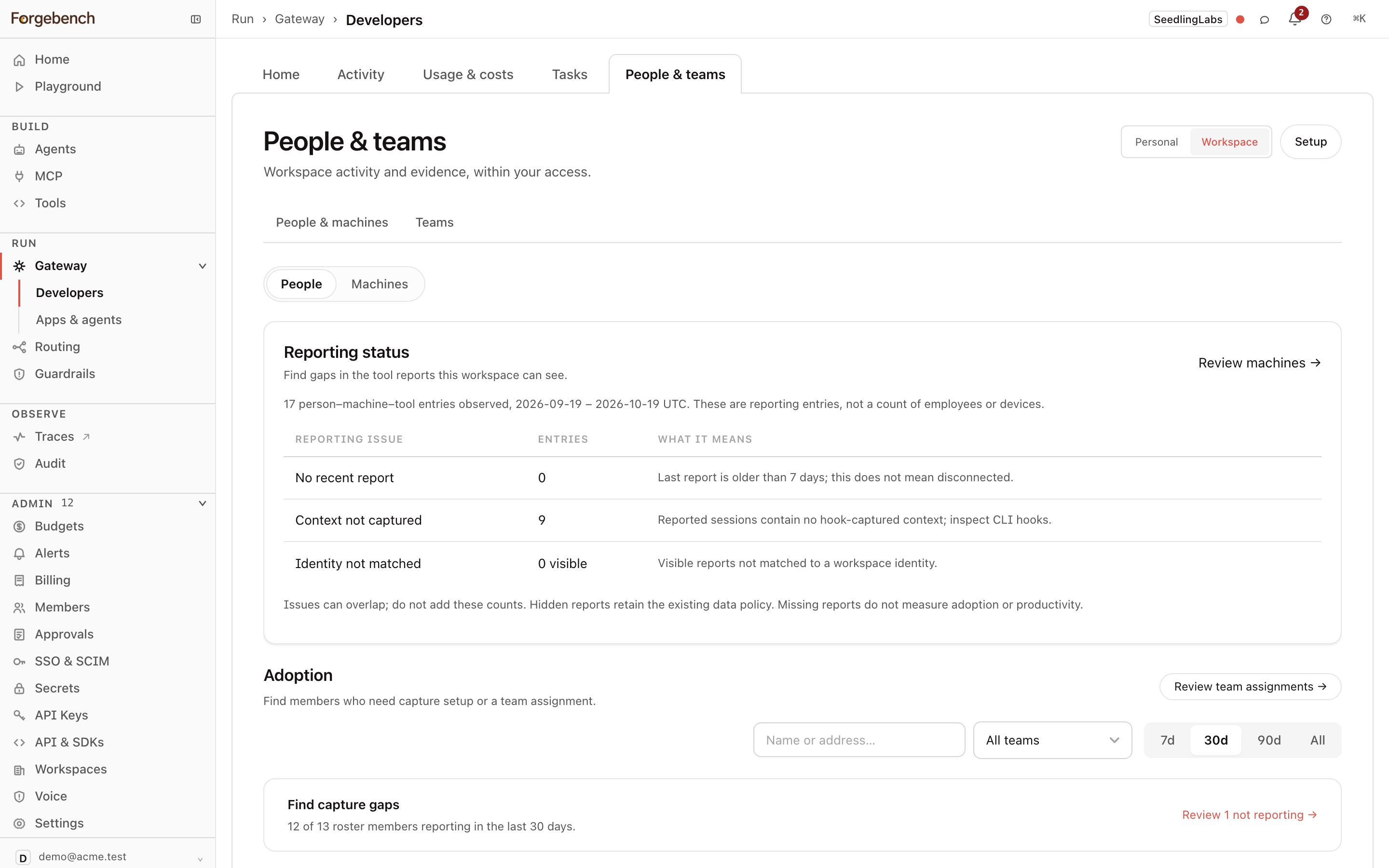
Who on the roster is reporting, by team. Review N not reporting filters to members who haven't reported in 30 days. The tables are in tabs:
- Roster: each developer's team, whether they report through session capture, OpenTelemetry, or both, their sessions, machines, usage trend, and last data received. Open a person for their full record.
- Unmatched: reporting identities not yet matched to a member.
- Plugins & skills: which extensions the team uses.
Machines lists the laptops and tools that have reported, so you can find capture gaps.
Impact
What the reporting produced. From the sessions' Git context: usage-equivalent cost per commit and per pull request, edits accepted, and every branch the work went into. When work sources are enabled and connected, Impact also shows pull requests, checks, deployments and incidents from those apps. It also shows how many tracker tasks have linked sessions.
Activity
Captured sessions, Routed requests, and Tools used, as on the Personal Activity tab, for everyone you're allowed to see.
Economics
Captured usage, Routed usage, and Plans & seats work as in the Personal view, across the workspace. By task shows Jira, ClickUp or Linear tasks with confirmed session links, within the workspace visibility policy. Select a task or suggestion count to review its sessions; Connections opens source management. Session tokens can include shared and suggested sessions, while task cost estimates use only confirmed, exclusive usage. Partial estimates are known portions, not complete task costs. See Task usage. Admins also see Plugins, skills & MCP servers: how many captured model responses used each one, day by day.
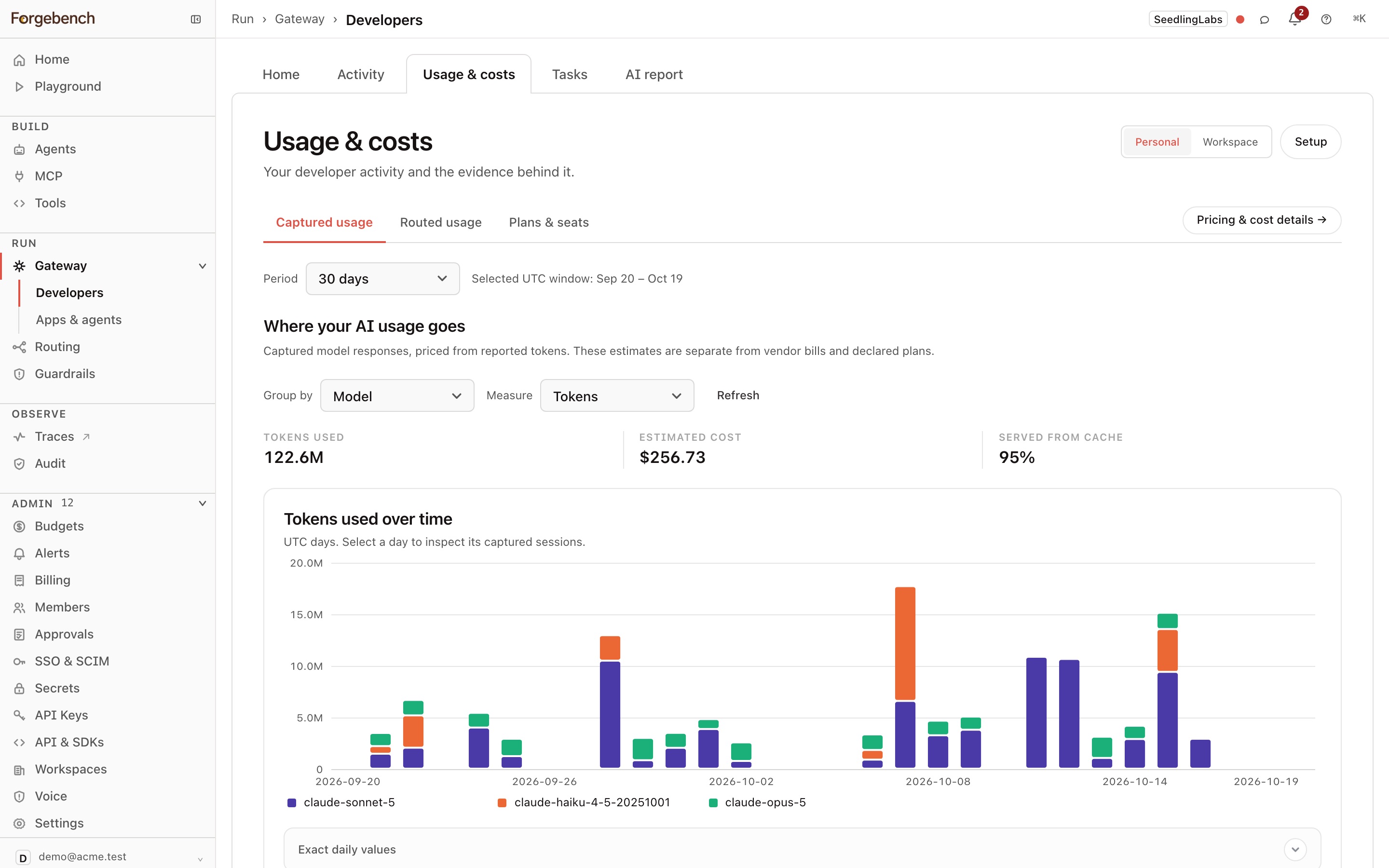
Pricing details opens Costs & plans. Usage estimates shows the total for the window, a Cost allocation chart, per-person averages, and every reporting person ranked by cost (select a row to open their record). Breakdown splits the same window by:
- Teams: tokens, cache hit rate, cost, cost per member, and share of total spend.
- Models: the same figures by model.
- Surfaces: the tool the spend came from, such as Claude Code, Codex, or Cowork.
Subscriptions lists the plans the workspace pays for and how many paid seats are in use. Session costs are estimated at public API rates from reported tokens. They are not an invoice.
Teams
- Membership: create teams and assign members, or import proposed assignments from machine tags or SCIM groups. A manual assignment overrides an imported one.
- Coaching coverage: each team's scored dimensions (steering, delivery, planning, quality, design), with coverage and the number of people scored.
- Compare profiles: up to four teams against each other and the workspace, as a chart and a ranked table.
A team with fewer reporters than the minimum group size in Configuration → Data policy publishes no scores. Below three reporters, scores are always withheld.
Configuration
Admins choose Setup at the top of Gateway → Developers to open Configuration. Use Work sources to connect Jira, ClickUp, Linear, or GitHub. See Connect work sources for credentials, scope selection, and import status. Its other Reporting sections control captured sessions:
-
Data sources: the status of the two signals: session export (run per developer with the CLI) and OpenTelemetry (sent automatically once configured, no install needed).
Rollout templates give your device-management team (Jamf, Intune, or similar) a ready-to-copy file per tool, setting the enforcement level and identity rule: Claude Code, Codex CLI, and Gemini CLI. Cursor Enterprise is set up in Cursor's Team Settings under OpenTelemetry Export instead.
Vendor connections import what Cursor (Business or Enterprise) and GitHub Copilot report about their own usage. Cursor's local history has no token counts, so connect Cursor with an admin API key to give captured Cursor sessions a cost. Each Cursor usage event names its conversation, and a session takes the cost Cursor reported for that conversation, labelled reported by Cursor. Cursor must report it under the same email as the session's developer, or the cost stays unknown. Cursor updates usage hourly, so a session's cost shows as partial until the next import after it ends. When Cursor Enterprise also sends OpenTelemetry for a session, that is used instead, so nothing is counted twice.
Connect Claude Enterprise stores the key for Claude chat and Cowork usage, which the app can't export the way Claude Code can. Create an Analytics API key in claude.ai → Organization settings → API, paste it, then choose Save and Test. Only the organization's primary owner can create the key, and it needs Claude Enterprise. A Claude Console Admin API key won't work; Test tells you if you pasted the wrong kind. The key is stored encrypted and never shown again.
-
Fleet: which laptops and tools are reporting, and which look misconfigured.
-
Data policy: Who can see individual scores (Admins only, Admins and team leads, or Everyone, their own only), the minimum group size, and whether leads see their own team only. Choose which route counts when a person reports through both the CLI and Claude Code's telemetry. You can also set allowed models and a weekly digest.
-
Spend alerts: caps on reported spend that alert but never block, and the tool fees you declare.