Alerts
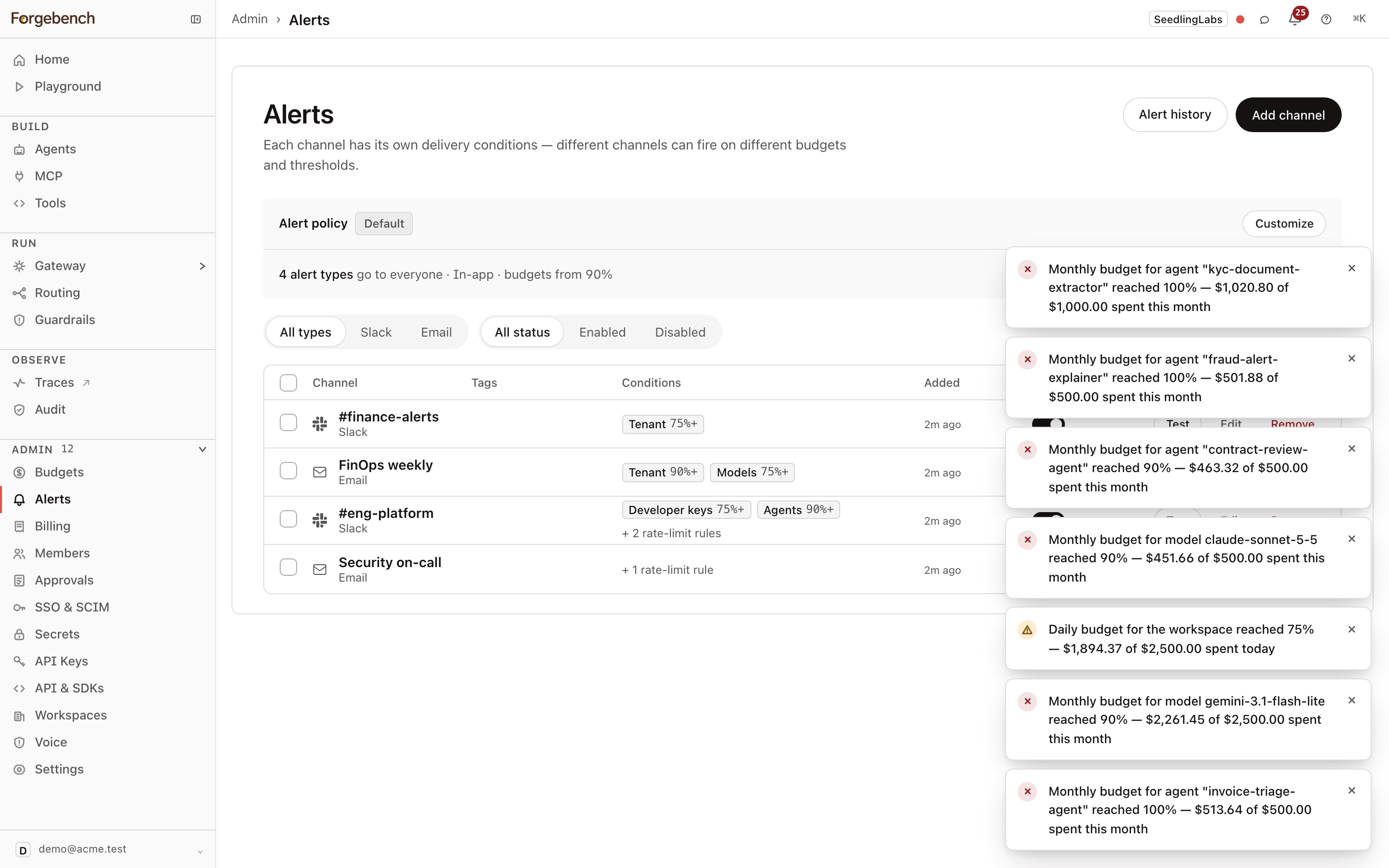
Alerts tell people when spend crosses a threshold, a limit is hit, or something needs a decision. They reach people in three ways:
- In the console: the bell and the Notifications page.
- By email, through the alert policy.
- In Slack or a shared inbox, through alert channels.
Set them up under Admin → Alerts. Reading needs alerts:view and
changing needs alerts:write; admins and owners have both.
Alert policy
Every alert reaches the people responsible for it: the key holder for a developer key, the agent owner for an agent, or the admins when there is none. The alert policy decides which alerts also reach more people, and how. It's on the Pro and Enterprise plans.
Choose Customize:
| Setting | Options |
|---|---|
| Deliver via | In-app, Email, or In-app + email. |
| Who gets each alert | For each alert type: its usual people (Key holder, Agent owner or Admins), the same + admins, Everyone, or No one to turn it off. Types: Workspace budget, Model budget, Developer key budget, Agent budget, Plan's monthly requests and tool calls, Rate limit reached, Tool call limit reached, MCP call limit reached, Provider rate limiting, Agent paused by guardrails, Provider key exposed. |
| Budget and plan usage alerts at | Any of 50, 75, 90, 95 and 100%, plus custom percentages (default 90 and 100%). Budget and plan usage alerts are sent at these percentages only, to whoever each alert goes to. When a budget blocks a request, that alert is always sent. |
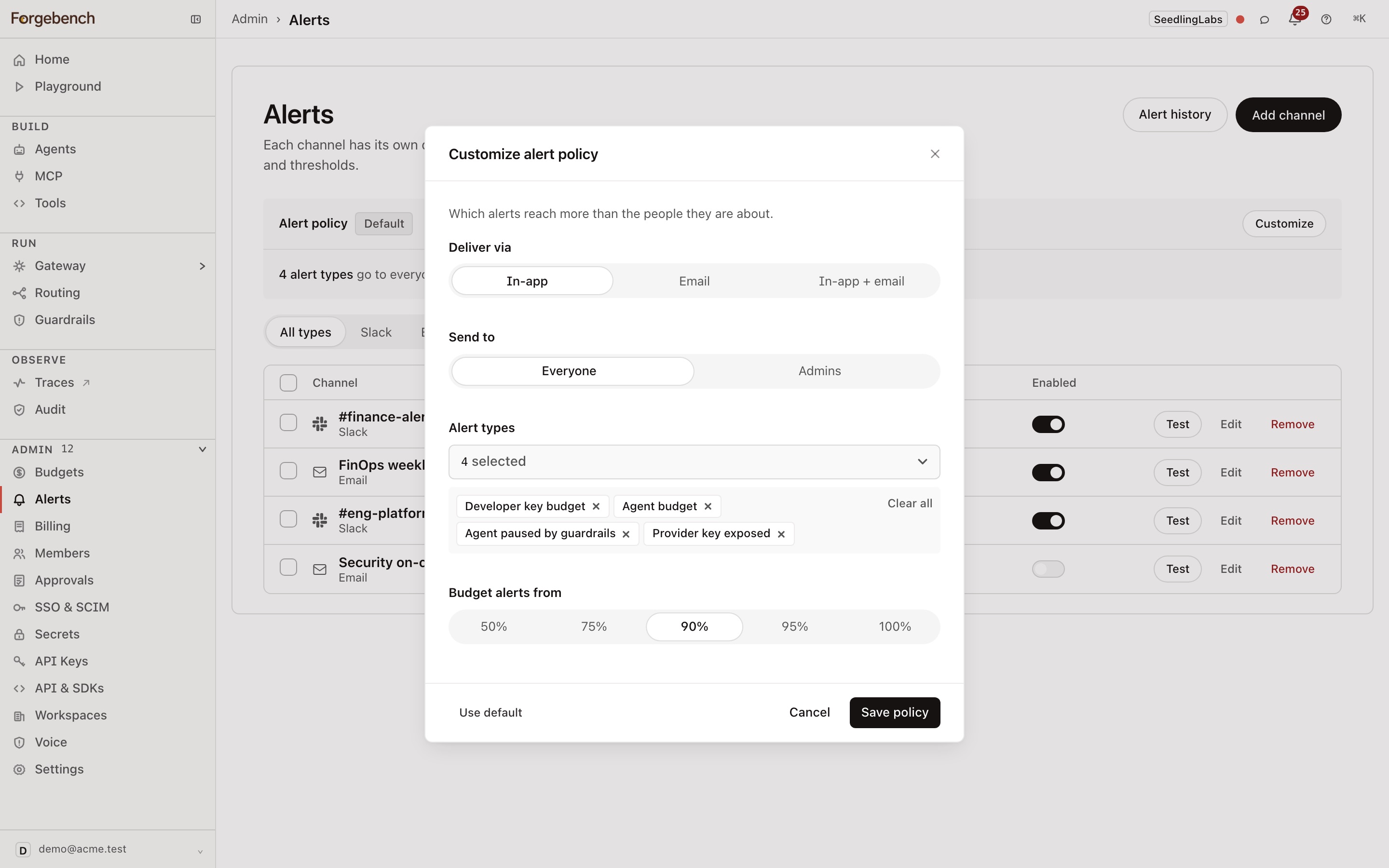
By default, developer key and agent budget alerts reach their owner, with admins added from 90%. Guardrail pauses reach the agent owner and admins. A missing or deactivated owner falls back to admins. Workspace, model, plan usage, provider, and security alerts go to admins. If no active admins remain, admin-addressed alerts fall back to active workspace members. Use default returns to this policy.
Announcements always go to everyone. Approval alerts go to the approvers and the requester.
Rate limit, tool call limit, MCP call limit and provider rate limiting alerts are sent as one summary every 15 minutes per key, agent or provider, saying how many requests were refused and when, instead of one alert per refused request. When a budget blocks a request, the people responsible get one "blocked a request" alert for that day or month.
Alert channels
A channel sends alerts to one Slack channel or email address. Choose Add channel:
- Deliver to: Slack (an incoming webhook URL starting with
https://hooks.slack.com/services/) or Email. Both are stored encrypted and never shown again. - Name and Tags.
- What fires this channel: budget thresholds, rate limits, or both.
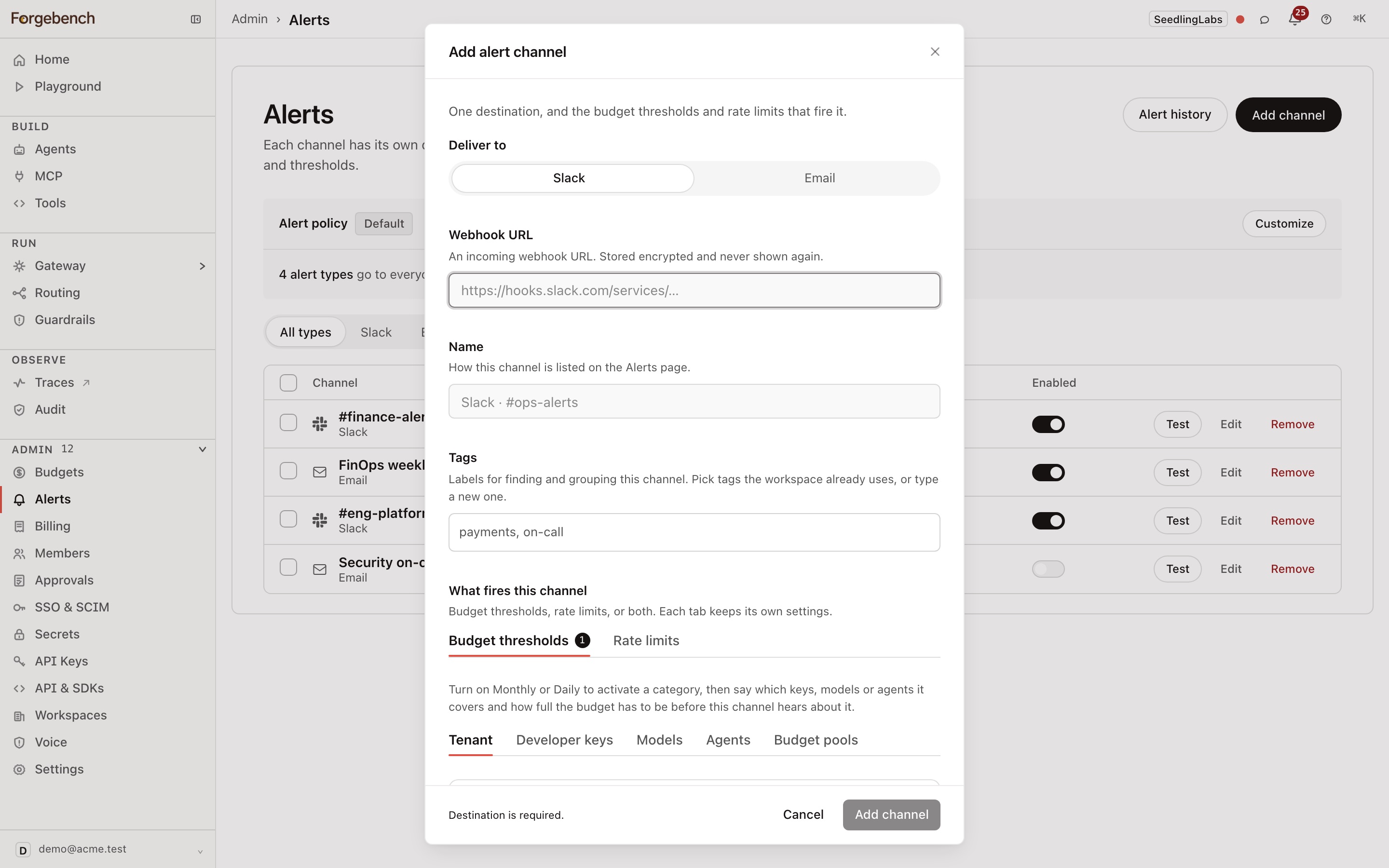
You can't change where a channel delivers; add a new one instead. Test sends a test delivery.
Budget thresholds
| Category | Watches | Periods |
|---|---|---|
| Tenant | Spend across the workspace. | Monthly, daily |
| Developer keys | The keys you pick. | Monthly, daily |
| Models | The models you pick. | Monthly, daily |
| Agents | The agents you pick, optionally only those with certain tags. | Monthly |
| Budget pools | A pool's limit and each member's share. Empty means every pool. | The pool's period |
Alert at sets the percentages; Tenant and pool alerts default to 75, 90 and 100%. Each percentage sends once per period.
Token caps alert on the same thresholds. A channel that watches a category and period (say workspace monthly) hears about both its spend cap and its token cap, with the same percentages and the same scoping. The message says it is a token cap and gives the figures in tokens, and a token alert and a spend alert at the same percentage are separate notifications. A condition can be saved for a key, agent or model that has only a token cap.
A refused call alerts too. When a budget or a token cap refuses a call, the people responsible get a "blocked a request" alert, even though the call never ran. It has its own slot (one per 10% of the cap used), so it never stands in for the real 100% alert, which is still sent when usage gets there. A token cap's alert gives the figures in tokens. Budget pools work differently: a pool, or a member's share, that is at least 90% used when it refuses a call sends its highest unsent alert.
Rate limits and events
| Alert | Fires when |
|---|---|
| Developer rate limits | A workspace, key or MCP server limit rejects a request with 429. |
| Tool call limit hits | An agent hits a tool's call ceiling. |
| MCP call limit hits | An agent hits an MCP server's or tool's call ceiling. |
| Tenant rate limits | The model provider returns 429. |
| Shadow routing complete | An agent's observation window has a recommendation. |
Select several channels to change their thresholds or rate limit alerts together. The new settings replace each channel's own.
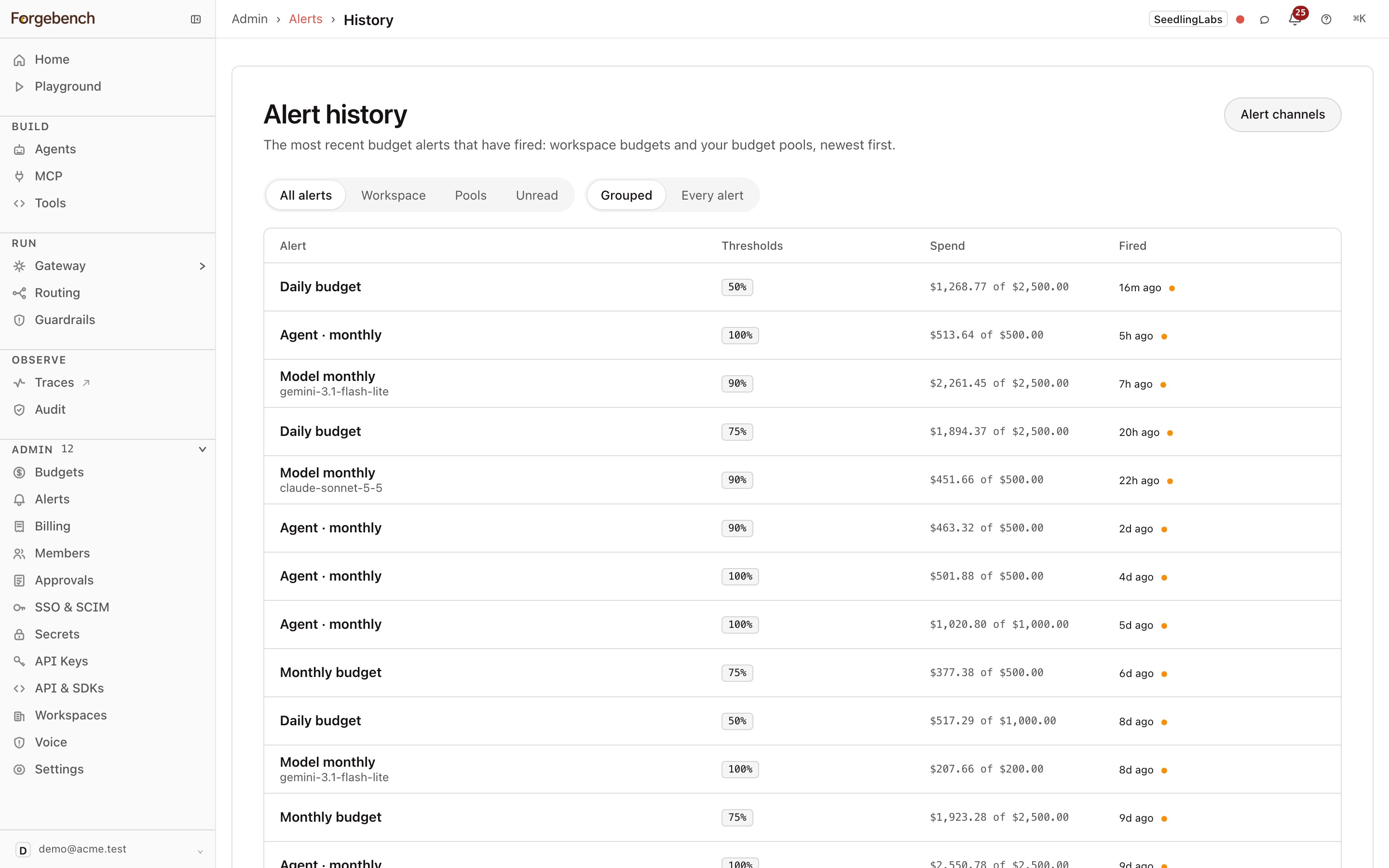
Alert history
Alert history lists alerts already sent. Filter by All alerts, Workspace, Pools or Unread. Grouped folds repeats of one budget on one day into one row; Every alert shows each one.
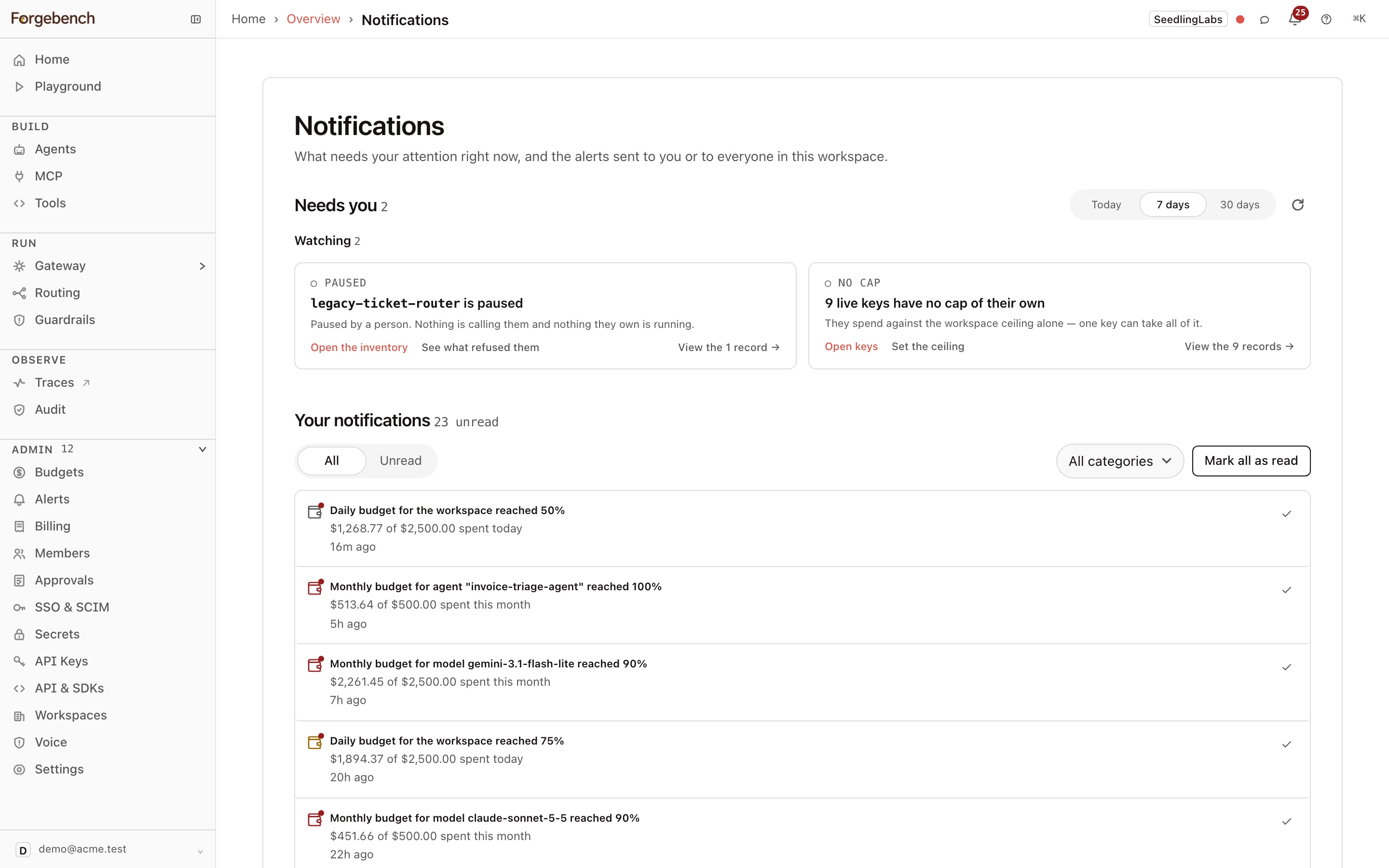
The bell and Notifications
The bell at the top of the console shows:
- Notices addressed to you, such as a key issued to you (marked Action needed until you reveal it).
- What needs you now: live problems such as a paused agent or keys with no cap of their own. Each links to where you fix it.
- Recent alerts sent to you or to the whole workspace.
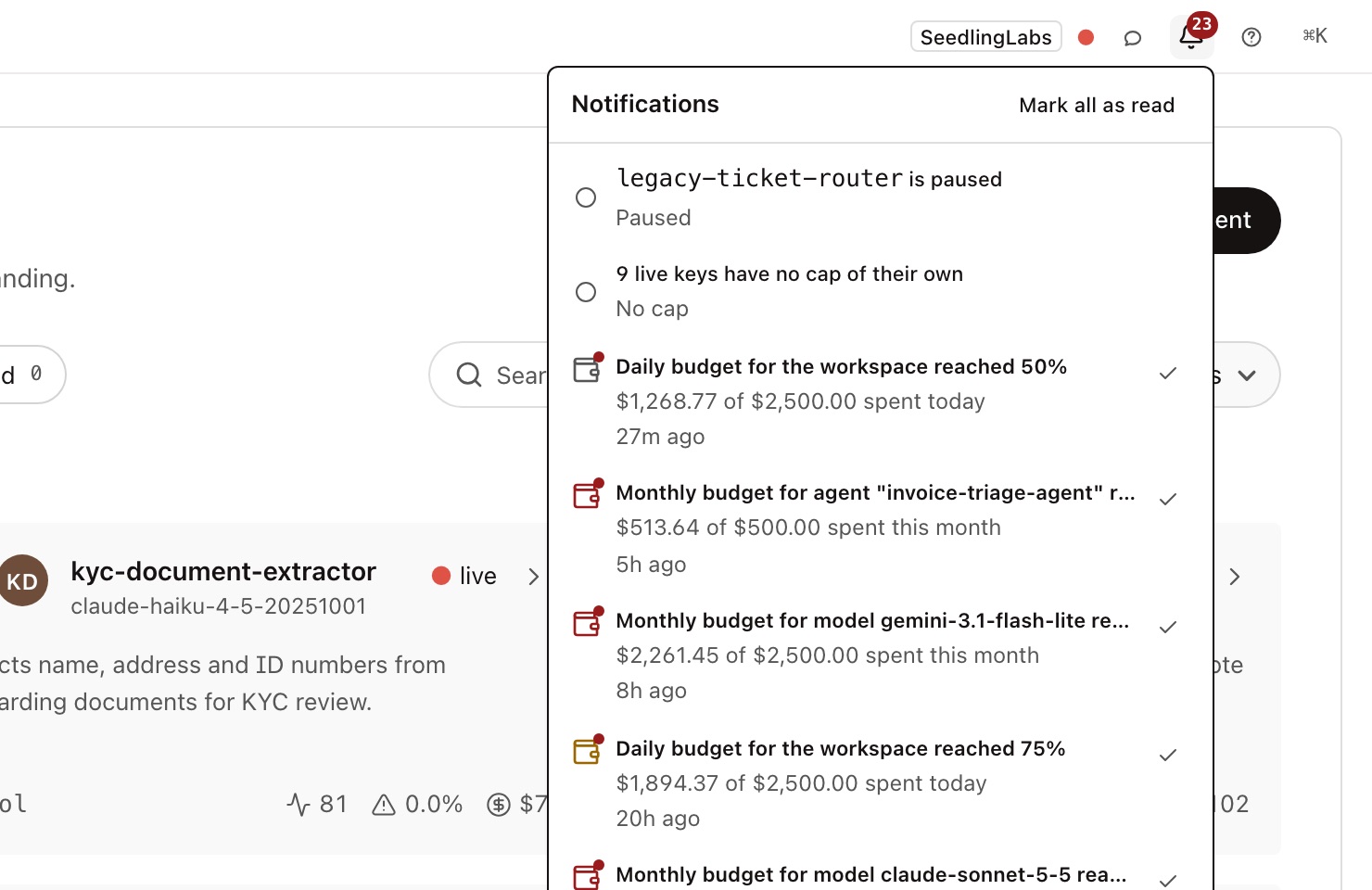
The red badge counts what you haven't seen. Opening the bell marks the "needs you" items as seen; alerts stay unread until you open one, tick it, or choose Mark all as read. The bell refreshes every 30 seconds. A new budget pool alert also appears once as a pop-up.
View all notifications opens the Notifications page: everything that needs you, split into Act now and Watching, and all your alerts with All / Unread and category filters.